Why disable root login over SSH?
root is the one username every attacker already knows. The bots scanning the internet don't guess your usernames — they hammer root with password after password. If you disable root SSH login, that entire attack stops working, and an attacker now needs to guess both a username and how you authenticate. You log in as a normal user instead and use sudo when you need root. This is one of the highest-value, lowest-effort SSH hardening steps.
Step 1 — Make sure you have a sudo user first
Don't disable root until you can get in another way, or you'll lock yourself out. Create a normal user with sudo rights:
# as root, create a user and give it sudo
adduser alice
usermod -aG sudo alice   # on Debian/Ubuntu
# (on RHEL/Fedora: usermod -aG wheel alice)
Then, in a separate session, confirm you can log in as that user and run sudo -v. Only continue once that works.
Step 2 — Give that user a key (recommended)
While you're here, set up key authentication for the new user — it's the real security win, more than disabling root alone. Add your public key to /home/alice/.ssh/authorized_keys (a mobile client like TermAI can deploy it for you). See SSH keys vs passwords.
Step 3 — Disable root login
In /etc/ssh/sshd_config, set:
PermitRootLogin noThen restart SSH: sudo systemctl restart ssh. Keep your current session open and confirm in a new connection that you can still log in as your user — and that ssh root@host is now refused.
Doing it from a phone
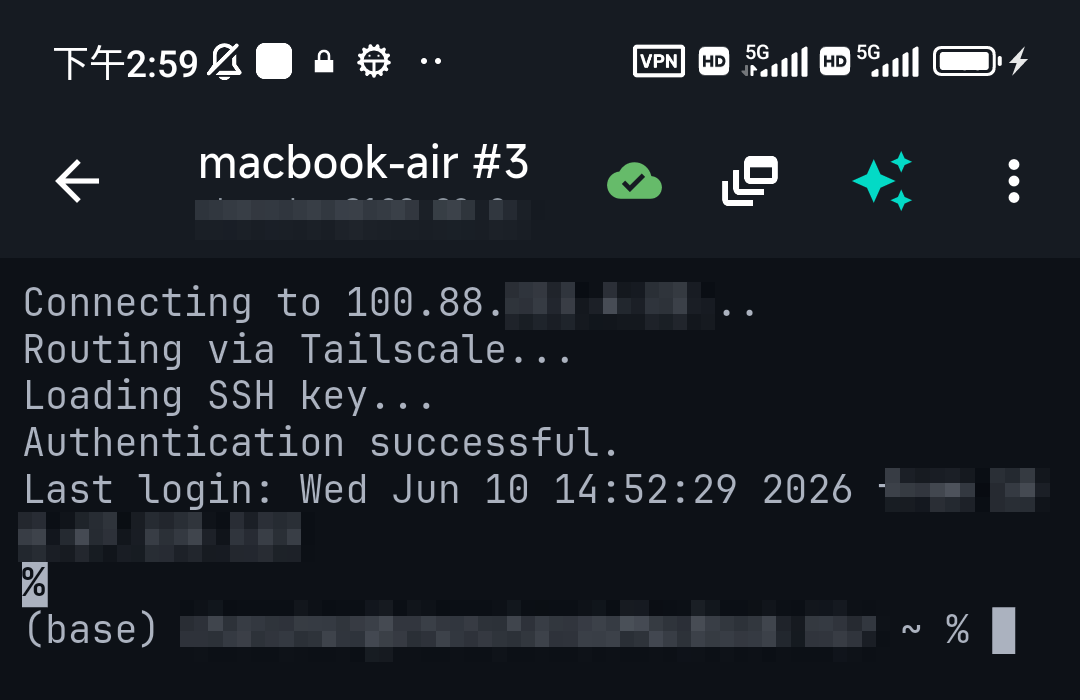
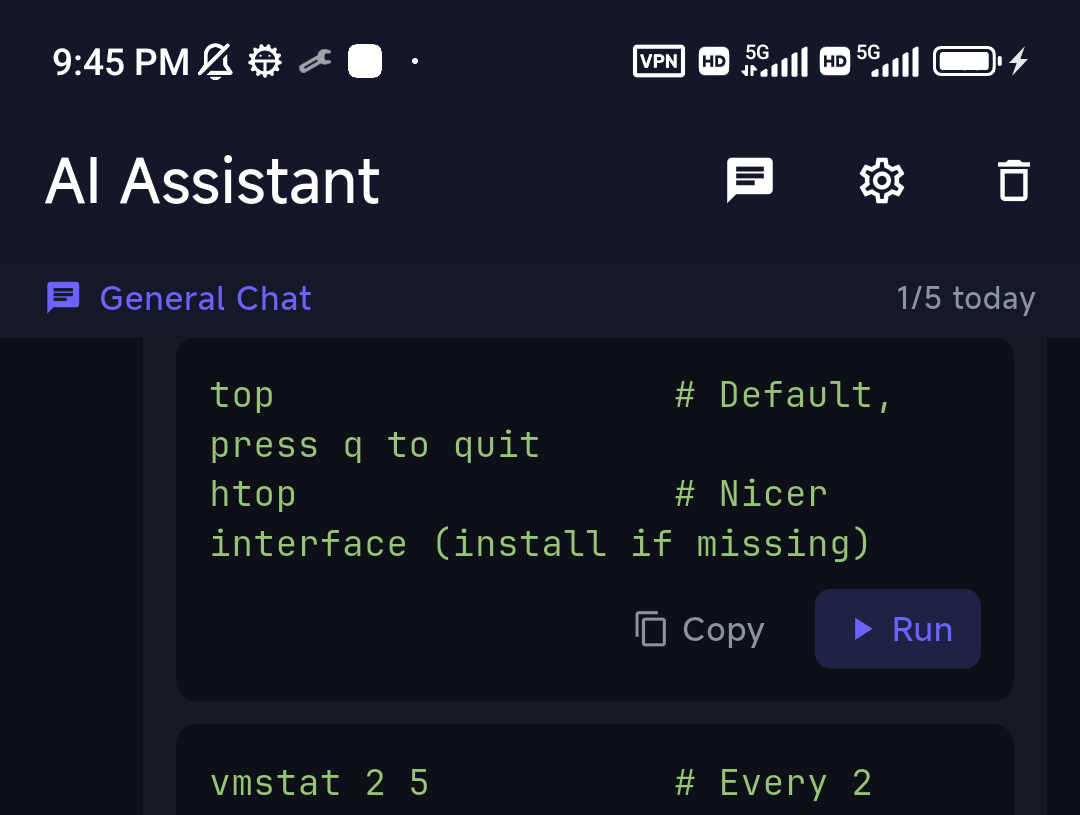
All of this works from a mobile SSH client: edit sshd_config over SFTP or with nano, run the user/sudo commands in the terminal, and update your saved connection's username from root to your new user. If you're unsure of the exact usermod group for your distro, ask TermAI's assistant — it knows whether you're on Debian or RHEL from the session and gives the right command.
The rest of the hardening checklist
Disabling root pairs naturally with the other basics, in order of impact:
- Keys +
PasswordAuthentication no— the biggest win (keys vs passwords). - Disable root login — this article.
- fail2ban — auto-ban repeat offenders.
- Behind Tailscale/WireGuard — don't expose SSH publicly at all.
- Optionally change the port — for quieter logs (should you change the SSH port?).
FAQ
How do I disable root SSH login?
Set PermitRootLogin no in /etc/ssh/sshd_config and restart SSH — after creating a sudo user you can log in as.
Will I lock myself out?
Only if you skip the sudo-user step. Create and test a normal user with sudo in a separate session before disabling root.
Should I disable root and also use keys?
Yes — they're complementary. Keys stop password attacks; disabling root removes the one username everyone targets.
Quick Facts
- Why:
rootis the universal brute-force target; disabling it stops those attacks - How: create a sudo user → test it →
PermitRootLogin no→ restart SSH - Don't lock out: confirm the sudo user works in a separate session first
- Pairs with: key auth +
PasswordAuthentication no
Free on iOS and Android. 5 AI requests/day on the free tier, plus unlimited SSH/SFTP and built-in Tailscale.