What this error actually means
"Host key verification failed" (often with the louder WARNING: REMOTE HOST IDENTIFICATION HAS CHANGED!) means the server is presenting a different identity key than the one your client remembered from previous connections. SSH refuses to proceed because this is exactly what a man-in-the-middle attack would look like. The honest truth, though: most of the time it's not an attack — it's a reinstalled server, a reused IP, or a restored VM. The right response is: figure out why the key changed, and only then remove the old one. Don't reflexively delete.
Why host keys change (benign vs suspicious)
| Cause | Benign? | How to confirm |
|---|---|---|
| Server reinstalled / OS reflashed | ✅ Yes | You (or your team) did it |
| DHCP gave the IP to a different machine | ✅ Yes | Router device list shows another box there |
| Cloud IP reused by a new VPS | ✅ Yes | Old server destroyed, address recycled |
| Restored from backup / migrated VM | ✅ Usually | New host keys were regenerated on restore |
| None of the above | ⚠️ Investigate | Verify the fingerprint out-of-band before connecting |
Step 1 — Verify the new key out-of-band
If you have console/physical access (or any already-trusted session), print the server's current fingerprint on the server:
ssh-keygen -lf /etc/ssh/ssh_host_ed25519_key.pubCompare it with the fingerprint in your client's warning. Match → the change is real and benign; proceed to remove the old entry. No match, and you can't explain the change → stop and investigate before typing any credentials. (Why SSH works this way: see host key TOFU explained.)
Step 2 — Remove the old key and reconnect
On a desktop, delete the stale entry from known_hosts:
ssh-keygen -R hostname-or-ip
# then reconnect and accept the new fingerprint
ssh user@host
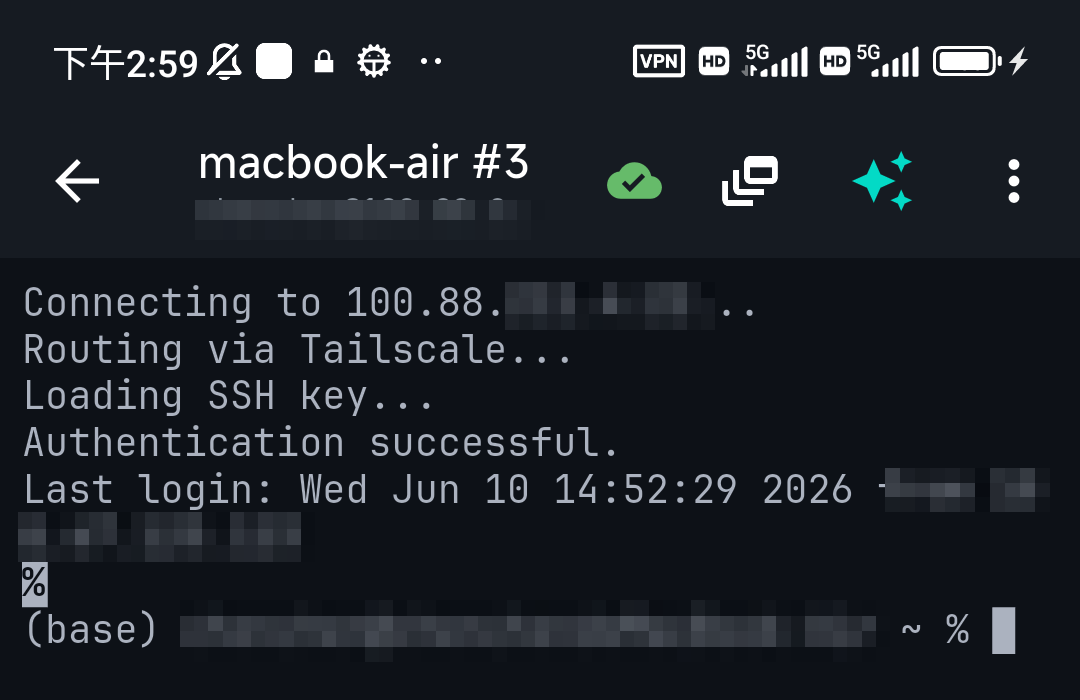
In a mobile client there's no file to edit — the remembered key lives in the app. In TermAI, when the key changes you get the warning with both fingerprints; once you've confirmed the change is legitimate, accept the new key (or clear the saved host key in the connection's settings) and reconnect. The new key is then pinned, same TOFU model as OpenSSH.
Avoiding the churn
- Stable addresses. Most "key changed" noise on home networks is DHCP shuffling machines across IPs. With Tailscale, each box keeps one address — keys stop "changing" because you stop connecting to different machines at the same IP.
- Preserve host keys on reinstall. Back up
/etc/ssh/ssh_host_*and restore them after a rebuild, and clients won't notice anything. - Don't disable checking.
StrictHostKeyChecking noturns off the one defense SSH has against MITM. Fix the cause instead.
FAQ
Is "REMOTE HOST IDENTIFICATION HAS CHANGED" always an attack?
No — usually it's a reinstall, restored VM, or an IP that now belongs to a different machine. But because it's also what MITM looks like, verify the new fingerprint out-of-band before accepting.
How do I fix it quickly?
After confirming the change is legitimate: ssh-keygen -R host on desktop, or accept/clear the saved host key in your mobile client, then reconnect.
Where does my phone store known host keys?
Inside the SSH app (not a known_hosts file). TermAI pins keys per connection and warns with both fingerprints when one changes.
Quick Facts
- Meaning: the server's identity key differs from the one your client pinned
- Usually benign: reinstall, IP reuse, restored VM — but verify before accepting
- Verify:
ssh-keygen -lf /etc/ssh/ssh_host_ed25519_key.pubon the server, compare fingerprints - Fix:
ssh-keygen -R host(desktop) / accept new key in-app (mobile); never disable checking
Free on iOS and Android. 5 AI requests/day on the free tier, plus unlimited SSH/SFTP and built-in Tailscale.