Set up passwordless SSH in three steps
"Passwordless" SSH doesn't mean no security — it means logging in with a key instead of typing a password every time. It's both more convenient and more secure. Three steps: generate a key pair, copy the public key to the server, and (optionally) turn off password login so only keys work. Here's the whole thing.
Step 1 — Generate a key pair
On your machine, create an Ed25519 key (modern, fast, secure — see Ed25519 vs RSA):
ssh-keygen -t ed25519 -C "[email protected]"Press Enter to accept the default location. You'll be asked for a passphrase — it encrypts the private key on disk. You can leave it empty for true one-step login, but a passphrase plus ssh-agent gives you both security and convenience. This creates two files: id_ed25519 (private — never share it) and id_ed25519.pub (public — goes on servers).
Step 2 — Copy the public key to the server
The public half has to be in the server's ~/.ssh/authorized_keys. The easy way:
ssh-copy-id user@hostIt asks for your password this one last time and installs the key. (No ssh-copy-id, or on Windows? See the full copy-key guide.) Now reconnect — ssh user@host should log you in without a password. If it still asks, see SSH still asking for a password.
Step 3 — Turn off password login (optional, recommended)
Once key login works, you can disable passwords entirely so brute-force attempts are pointless. On the server, in /etc/ssh/sshd_config:
PasswordAuthentication no
PubkeyAuthentication yes
Then sudo systemctl restart ssh. Important: confirm key login works in a separate session before you disconnect — otherwise a mistake can lock you out. Pair this with disabling root login and fail2ban for a solid baseline.
Why keys beat passwords
A key is a 256-bit secret that never travels to the server — only a signature does — so there's nothing to phish or brute-force over the wire. Passwords can be guessed; bots hammer port 22 with millions of them daily. With key-only auth, those attempts simply can't succeed. More on the trade-off: SSH keys vs passwords.
Passwordless SSH from a phone
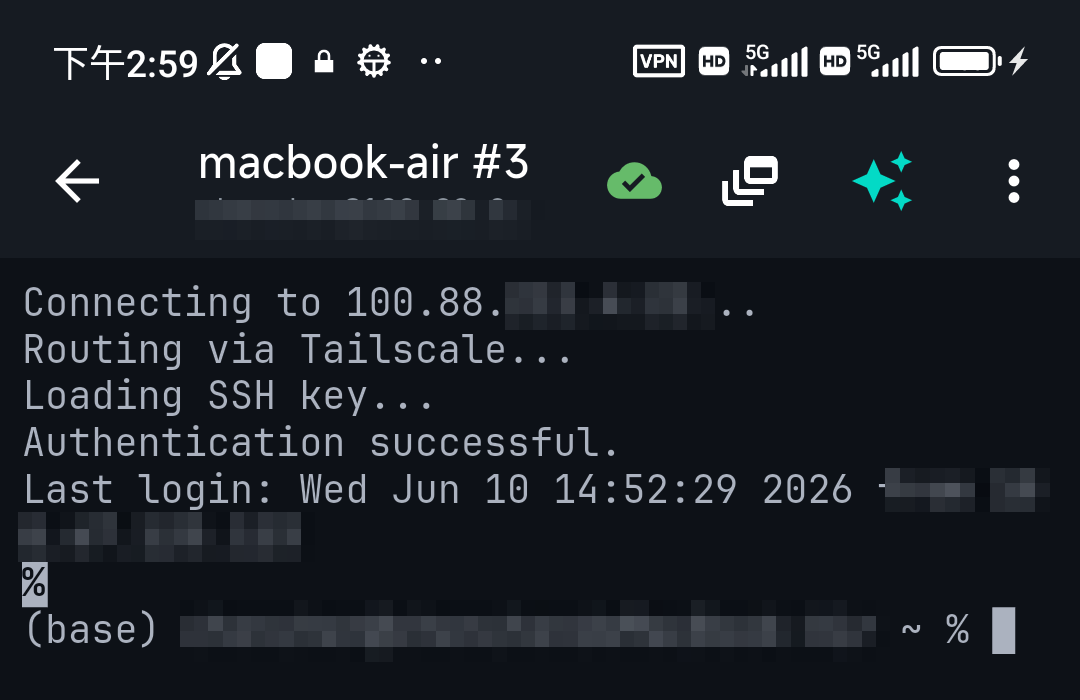
The same model works on mobile, and a good client makes it one flow: TermAI generates the Ed25519 key in the device Keychain, and a one-tap deploy to server installs the public key into authorized_keys — steps 1 and 2 without a terminal. After that you connect with the key, no password to type on a touch keyboard.
FAQ
How do I set up passwordless SSH?
Generate a key with ssh-keygen -t ed25519, copy the public key to the server with ssh-copy-id user@host, then reconnect — you'll log in with the key, no password. Optionally disable password auth in sshd_config.
Is passwordless SSH secure?
More secure than passwords — the key never crosses the network, so it can't be phished or brute-forced. Disabling password auth entirely makes brute-force attempts impossible.
Should the key have a passphrase?
Ideally yes — it encrypts the private key on disk. Use ssh-agent so you only type it once per session and still get one-step logins.
Will I get locked out if I disable passwords?
Only if key login wasn't working first. Always confirm you can log in with the key in a separate session before disabling password auth.
Quick Facts
- Three steps: generate key → copy public key to server → (optional) disable password auth
- Generate:
ssh-keygen -t ed25519 - Install:
ssh-copy-id user@host - Harden:
PasswordAuthentication noin sshd_config (after confirming key login works) - Mobile: generate + deploy in one tap (TermAI), then key login
Start with Free on iOS or Android. Current connection limits, AI allowances and subscription terms are shown in the app before purchase.