What the SSH config file is
The SSH config file at ~/.ssh/config lets you save per-host settings — name, user, port, key, jump host, keep-alives, and dozens of other options — so instead of typing ssh -i ~/.ssh/work_key -p 2222 [email protected] you just type ssh myserver. It's the single biggest quality-of-life upgrade for anyone using SSH from a terminal, and it's read by far more than the ssh command: scp, sftp, rsync, git, Ansible and VS Code Remote-SSH all obey it too.
The short version:
- Where:
~/.ssh/configon Linux/macOS,%USERPROFILE%\.ssh\configon Windows. It does not exist by default — you create it. - Permissions:
600on the file,700on~/.ssh, or SSH refuses to start. - Format: a
Host aliasline, then indentedKeyword valuelines until the nextHost/Match. - Gotcha: the first value found for each option wins, so specific blocks go above
Host *.
This guide covers the format, every option you'll realistically use, wildcards and Match blocks, jump hosts, Include, multiple GitHub accounts, connection multiplexing, how to debug a config that isn't applying, and how the same idea works on a phone. Everything here is current for OpenSSH 10.x (10.5 is the current release as of August 2026); version notes are called out where a feature needs a newer client.
Where is the SSH config file? (Linux, macOS, Windows)
There are two client config files — a personal one and a system-wide one — plus the completely separate server config, which people mix up constantly (see ssh_config vs sshd_config below).
| File | Path | Applies to |
|---|---|---|
| Your config | ~/.ssh/config | Just you. Read first, wins ties. |
| System-wide (Linux/macOS) | /etc/ssh/ssh_config (+ /etc/ssh/ssh_config.d/*) | Every user on the machine; read last. |
| Your config (Windows) | %USERPROFILE%\.ssh\config — e.g. C:\Users\You\.ssh\config | Windows built-in OpenSSH client. |
| System-wide (Windows) | %PROGRAMDATA%\ssh\ssh_config | All users on that PC. |
| Anything else | ssh -F /path/to/file host | One-off override; -F /dev/null ignores all config. |
Create it on Linux or macOS:
mkdir -p ~/.ssh
chmod 700 ~/.ssh
touch ~/.ssh/config
chmod 600 ~/.ssh/config
nano ~/.ssh/config     # or vim, or code ~/.ssh/config
On Windows (PowerShell), with the built-in OpenSSH client:
New-Item -ItemType Directory -Force -Path "$env:USERPROFILE\.ssh"
New-Item -ItemType File -Force -Path "$env:USERPROFILE\.ssh\config"
notepad "$env:USERPROFILE\.ssh\config"
Important on Windows: PuTTY does not read this file — it stores saved sessions in the Windows Registry instead. The config file only applies to the OpenSSH client (ssh.exe), which ships with Windows 10 and 11, and to tools built on it (Git for Windows, WSL, VS Code Remote-SSH). If you're a PuTTY user looking to move, see Termius vs PuTTY.
The basic format
Add a block per host:
Host myserver
    HostName 203.0.113.7
    User deploy
    Port 2222
    IdentityFile ~/.ssh/work_key
Now ssh myserver expands to the full command. Host is the alias you type; HostName is the real address. That's 90% of the value right there.
The syntax rules that trip people up:
- A
Host(orMatch) line opens a block; every line after it belongs to that block until the nextHost/Match. - Indentation is cosmetic. It makes blocks readable but SSH ignores it — the
Hostline is what defines scope. - Keywords are case-insensitive (
HostName,hostnameandHOSTNAMEare the same); values usually are not. - Separator is whitespace or
=. One option per line.#starts a comment. - Values with spaces go in double quotes:
IdentityFile "~/.ssh/my key". - First match wins, per option. Once a value for an option has been set, later blocks can't change it.
Hostmatches the name you typed on the command line, not the resolvedHostName.ssh 203.0.113.7will not pick up themyserverblock above.
A complete ~/.ssh/config example you can copy
A realistic file covering the common cases — copy it and edit the names:
# --- Personal VPS ---------------------------------------------------
Host vps
    HostName 203.0.113.7
    User deploy
    Port 2222
    IdentityFile ~/.ssh/id_ed25519
    IdentitiesOnly yes

# --- Home lab (reachable by short name) -------------------------------
Host pi
    HostName raspberrypi.local
    User pi
    IdentityFile ~/.ssh/id_ed25519_home

# --- Work bastion + the boxes behind it -------------------------------
Host bastion
    HostName 198.51.100.9
    User jump
    IdentityFile ~/.ssh/work_key

Host db web1 web2
    User admin
    ProxyJump bastion
    IdentityFile ~/.ssh/work_key
    IdentitiesOnly yes

# --- Everything on the internal domain --------------------------------
Host *.internal.example.com
    User admin
    ProxyJump bastion

# --- Old appliance that only speaks legacy crypto ----------------------
Host oldbox
    HostName 192.0.2.50
    User root
    HostKeyAlgorithms +ssh-rsa
    PubkeyAcceptedAlgorithms +ssh-rsa

# --- Defaults for everything else (keep this block LAST) --------------
Host *
    AddKeysToAgent yes
    ServerAliveInterval 60
    ServerAliveCountMax 3
    ConnectTimeout 10
    HashKnownHosts yes
Note Host db web1 web2: one block can serve several aliases. Note also that Host * sits at the bottom — see the next section for why that matters more than it looks.
The SSH config options you'll actually use
The everyday set — these cover almost every real config:
| Option | What it does |
|---|---|
HostName | The real hostname or IP |
User | Login username |
Port | Non-default port (if you moved off 22) |
IdentityFile | Which private key to use (can appear more than once) |
IdentitiesOnly yes | Offer only that key — fixes too many authentication failures |
AddKeysToAgent yes | Load the key into ssh-agent on first use, so you type the passphrase once (OpenSSH 7.2+) |
ServerAliveInterval 60 | Keep-alive ping every 60s — fixes idle broken pipe drops |
ServerAliveCountMax 3 | Give up after 3 unanswered pings (so ~3 minutes with the above) |
ConnectTimeout 10 | Fail fast instead of hanging on a dead host (connection timed out) |
ProxyJump bastion | Hop through a jump host (OpenSSH 7.3+) |
Include ~/.ssh/config.d/*.conf | Pull in other files (OpenSSH 7.3+) |
HostKeyAlgorithms +ssh-rsa | Legacy server compatibility (no matching host key type) |
The power set — reach for these when you have a specific problem:
| Option | What it does |
|---|---|
ControlMaster auto / ControlPath / ControlPersist | Reuse one TCP connection for every session to a host — see multiplexing |
LocalForward 8080 localhost:5432 | A permanent -L tunnel for that host; RemoteForward and DynamicForward mirror -R and -D |
ForwardAgent yes | Forward your ssh-agent to the server. Powerful and risky — only for hosts you fully trust; ProxyJump is the safer way to reach a second hop |
PreferredAuthentications publickey | Skip password prompts entirely; useful when a server keeps asking for a password |
PubkeyAcceptedAlgorithms +ssh-rsa | Re-enable SHA-1 RSA keys for ancient servers (renamed from PubkeyAcceptedKeyTypes in OpenSSH 8.5) |
UserKnownHostsFile / StrictHostKeyChecking | Where host keys are stored and how strictly they're checked — handy for throwaway lab VMs, dangerous everywhere else (host key verification failed) |
RequestTTY yes + RemoteCommand | Run something automatically on login — e.g. RemoteCommand tmux attach || tmux new |
SetEnv FOO=bar / SendEnv LANG | Push environment variables to the server (the server must allow them) |
IdentityAgent | Point at a specific agent socket — e.g. 1Password or a per-profile agent (OpenSSH 7.3+) |
Compression yes | Only helps on genuinely slow links; on a fast link it costs CPU for nothing |
LogLevel VERBOSE | Permanent verbose output for a problem host, without typing -v |
IgnoreUnknown | Tolerate options a given client doesn't know — see the macOS UseKeychain trick |
The full list is man ssh_config, which documents well over a hundred keywords. The ones above are the ones that earn their place.
Wildcards, defaults, and why order matters
Host accepts patterns: * matches any run of characters, ? matches one, and ! negates. You can list several patterns on one line:
Host web1 web2 db*
    User admin

Host *.internal.example.com !secret.internal.example.com
    ProxyJump bastion

Host *
    ServerAliveInterval 60
    AddKeysToAgent yes
Now the part that catches everyone: settings are applied top-down and the first value obtained for each option wins. Later blocks can add new options, but they can never override one that's already been set.
So if you put this at the top of your file:
Host *
    User root

Host vps
    HostName 203.0.113.7
    User deploy      # <-- ignored, User was already set to root
…every connection logs in as root, and the User deploy line silently does nothing. Rule of thumb: specific blocks at the top, Host * at the bottom. The one time you deliberately put a block first is when you want its values to be unoverridable.
Match blocks: conditional configuration
Host only matches on the name you typed. Match (OpenSSH 6.5+) can key off the user, the resolved host, the local user, or the result of a command — which is how you make one config behave differently on different networks or machines.
# Use the work key only when connecting as the deploy user
Match user deploy
    IdentityFile ~/.ssh/work_key
    IdentitiesOnly yes

# Only go through the bastion when the box isn't directly reachable
Match host db.internal exec "! ping -c1 -W1 10.0.0.5 >/dev/null 2>&1"
    ProxyJump bastion

# Anything not matched above
Match all
    ServerAliveInterval 60
Match exec runs the command through your shell and matches if it exits 0. It runs on every connection, so keep it cheap — a slow command here makes every ssh, git push and scp slow. Inside the command you can use tokens like %h (host), %p (port), %r (remote user), %u (local user) and %d (local home directory).
Jump hosts and bastions in one line (ProxyJump)
To reach a private server that's only accessible through a bastion, ProxyJump chains the hops automatically:
Host bastion
    HostName 198.51.100.9
    User jump

Host db
    HostName 10.0.0.5
    User postgres
    ProxyJump bastion
Then ssh db transparently routes through bastion. Things worth knowing:
- Chain multiple hops with commas —
ProxyJump bastion,relay— and each hop can itself be an alias defined elsewhere in the file. - The flag form is
ssh -J bastion db, identical behaviour without a config entry. - Your key never touches the bastion. Authentication to the final host happens end-to-end from your machine, which is why
ProxyJumpis strictly safer thanForwardAgentfor this job. - Older clients (pre-7.3) need the legacy equivalent:
ProxyCommand ssh -W %h:%p bastion. - SFTP and scp inherit it —
scp file db:/tmp/hops through the bastion too, no extra flags.
A mesh VPN like Tailscale is the other way to solve this: the private box gets a stable address you can reach directly, and the bastion (and its config block) disappears entirely.
Splitting a big config with Include
Once you're past a dozen hosts, one file gets unwieldy — and you probably don't want work hosts in a file you sync to a personal machine. Include (OpenSSH 7.3+) fixes both:
# ~/.ssh/config
Include ~/.ssh/config.d/*.conf

Host *
    AddKeysToAgent yes
    ServerAliveInterval 60
mkdir -p ~/.ssh/config.d
chmod 700 ~/.ssh/config.d
# then put work.conf, personal.conf, clients.conf in thereIncluded files are inserted at the point of the Include line, so the same first-match-wins rule applies: put Include near the top and your Host * defaults at the bottom. Relative paths are resolved against ~/.ssh/, and glob patterns are expanded in sorted order — a good reason to name files 10-work.conf, 20-personal.conf if ordering matters. Tools that generate config (Tailscale, cloud CLIs, corporate VPN clients) can then own their own file without touching yours.
Multiple GitHub or GitLab accounts with one config
This is the most common non-server use of ~/.ssh/config. Git can only offer one key per host, so you invent two aliases that both point at the real host:
Host github.com
    HostName github.com
    User git
    IdentityFile ~/.ssh/id_ed25519_personal
    IdentitiesOnly yes

Host github.com-work
    HostName github.com
    User git
    IdentityFile ~/.ssh/id_ed25519_work
    IdentitiesOnly yes
Then clone work repos with the alias in place of the hostname:
git clone [email protected]:acme/backend.git

# fix an existing clone:
git remote set-url origin [email protected]:acme/backend.git
IdentitiesOnly yes is not optional here. Without it your client offers every key it knows about, GitHub accepts the first valid one, and you'll silently push from the wrong account (or get Too many authentication failures once you have more than ~5 keys). Verify with ssh -T [email protected] — GitHub replies with the account name it authenticated you as.
Make SSH connect instantly: ControlMaster
Connection multiplexing reuses one already-authenticated TCP connection for every subsequent session to the same host. New sessions open in milliseconds instead of a full handshake, and you only authenticate once — a big deal on high-latency links and for tools that open many short SSH connections (git, Ansible, rsync loops).
Host *
    ControlMaster auto
    ControlPath ~/.ssh/sockets/%C
    ControlPersist 10m
mkdir -p ~/.ssh/socketsDetails that matter: the sockets directory must exist or every connection fails. Use %C (a hash of host, port, user and local host) rather than %r@%h:%p — Unix socket paths are limited to about 100 characters, and long hostnames overflow that, especially on macOS. ControlPersist 10m keeps the master alive for 10 minutes after the last session so the next command reuses it; ControlPersist no tears it down immediately.
The trap: while a master connection is alive, config changes for that host don't apply, and options like port forwarding are taken from the master. Close it explicitly with ssh -O exit myserver (or ssh -O check myserver to see if one is running) when you've edited the config and things behave oddly.
ssh_config vs sshd_config: which file do you want?
Half the confusion around "the SSH config file" is that there are three different files with similar names on a typical machine.
| File | Side | Controls |
|---|---|---|
~/.ssh/config | Client, per user | How you connect out: aliases, keys, ports, jump hosts. Everything in this article. |
/etc/ssh/ssh_config | Client, system-wide | Same options, defaults for all users on that machine. |
/etc/ssh/sshd_config | Server | How the machine accepts connections: Port, PermitRootLogin, PasswordAuthentication, AllowUsers. |
Note the d: sshd_config is the daemon. Editing it needs sudo and a sudo systemctl restart ssh to take effect; ~/.ssh/config needs neither — changes apply to the next connection. If your goal is changing the SSH port, disabling root login, or turning off password auth, you want sshd_config on the server, not this file.
Testing and debugging your SSH config
Two commands answer nearly every "why isn't my config working" question:
ssh -G myserver     # print the FINAL effective config for that alias, and exit
ssh -v myserver      # connect verbosely; shows which config lines were applied
ssh -G is the one people don't know about. It resolves every wildcard, Match and Include and prints the values SSH will actually use — so ssh -G db | grep -i -e user -e proxyjump -e identityfile instantly settles whether your block is being read. In ssh -v output, look for the Reading configuration data and Applying options for ... lines near the top; if your alias isn't listed there, the block isn't matching.
Common failures and what they mean:
| Symptom | Cause / fix |
|---|---|
Bad owner or permissions on ~/.ssh/config | The file is group- or world-writable, or not owned by you: chmod 600 ~/.ssh/config, chmod 700 ~/.ssh, chown $USER ~/.ssh ~/.ssh/config. Same idea as unprotected private key file. |
Bad configuration option: usekeychain | UseKeychain is Apple's macOS-only addition. On Linux/Windows, or in a config you sync between them, guard it: put IgnoreUnknown UseKeychain above the line. |
| Setting is simply ignored | An earlier block (usually Host * at the top) already set that option. First match wins — move your specific block up. Confirm with ssh -G. |
| Config edits have no effect | A live ControlMaster connection is being reused. ssh -O exit host, then reconnect. |
| Block never matches | You connected by IP or FQDN while the block matches a short alias — Host matches the string you typed, not the resolved address. |
| Works in the terminal, not in git/VS Code | That tool is using a different SSH binary (Git for Windows and some GUIs bundle their own) or running as a different user, so it reads a different ~/.ssh/config. |
A useful sanity check when a host misbehaves: ssh -F /dev/null user@host connects with your config completely ignored. If that works and ssh myserver doesn't, the problem is in the config file, not the server. More triage in the SSH troubleshooting guide.
What else reads ~/.ssh/config
It's not just the ssh command — this is why one well-written config pays off everywhere:
scp,sftp— same aliases:scp backup.tar vps:/srv/. See transferring files over SSH.rsync— uses SSH as its transport, sorsync -a ./site/ vps:/var/www/picks up your port, key and jump host.git— the whole multi-account trick above; also lets you use a jump host for an internal Git server.- VS Code Remote-SSH / JetBrains Gateway — they read the same file and list your hosts in the picker.
- Ansible — honours the config, and
ControlPersistis a large part of why Ansible over SSH is fast. - Not PuTTY — Registry-based sessions, no relation.
- Not mobile SSH apps — which is the next section.
The mobile equivalent of ~/.ssh/config
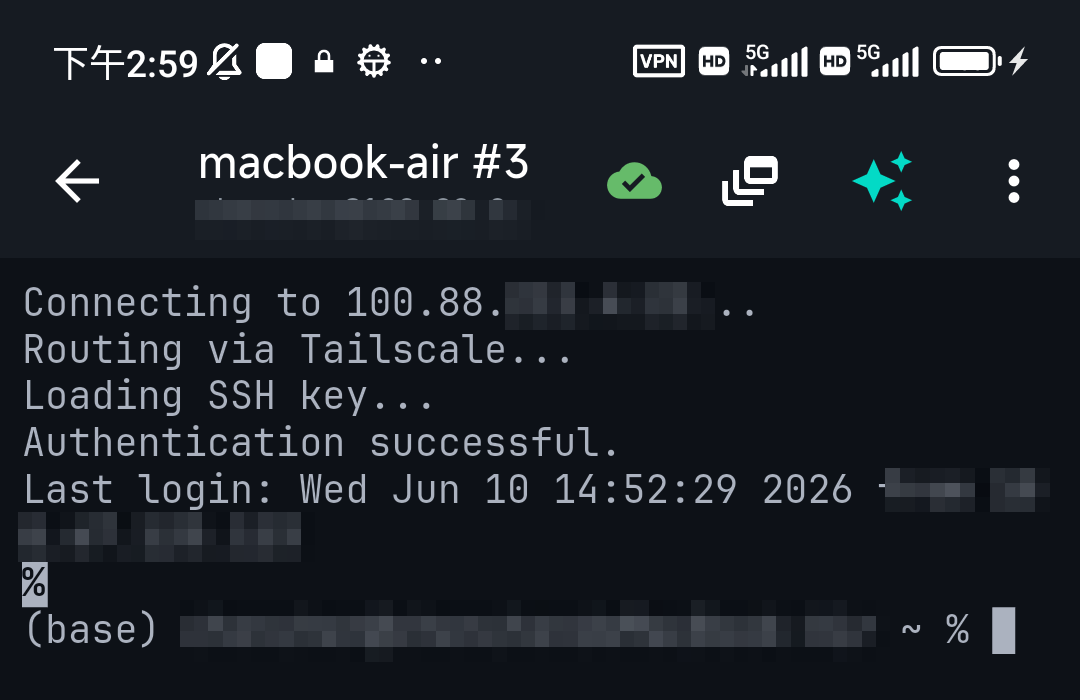
Mobile SSH clients generally don't parse a ~/.ssh/config file — they store the same information per connection in the app: each saved host has its own user, port, key, and keep-alive settings, edited in a form instead of a text file. The benefit is identical (set it once, reuse forever); the mechanism is a UI rather than a config file. In TermAI each connection carries its own auth and options, so the equivalent of IdentitiesOnly or a custom port is just a field on that connection.
Roughly how the concepts map:
| In ~/.ssh/config | On a phone |
|---|---|
Host alias | The connection's name in the list |
HostName, Port, User | Address / port / username fields |
IdentityFile + IdentitiesOnly | Pick the specific key stored in the app — one connection, one key, so the "too many keys" problem doesn't arise |
ServerAliveInterval | The app's keep-alive setting |
ProxyJump | A jump-host field if the app has one — otherwise put the box on Tailscale and connect directly |
Host * defaults | App-wide settings that apply to every connection |
Two practical tricks if you rely on a big desktop config:
- Keep the config on a server, not the phone. SSH from the phone to one jump box that already has your full
~/.ssh/config, thenssh dbfrom there. All your aliases work, on any device, with nothing to re-enter. - Re-create only what you use on mobile. Most people connect to three or four boxes from a phone, not thirty — you don't need to port the whole file.
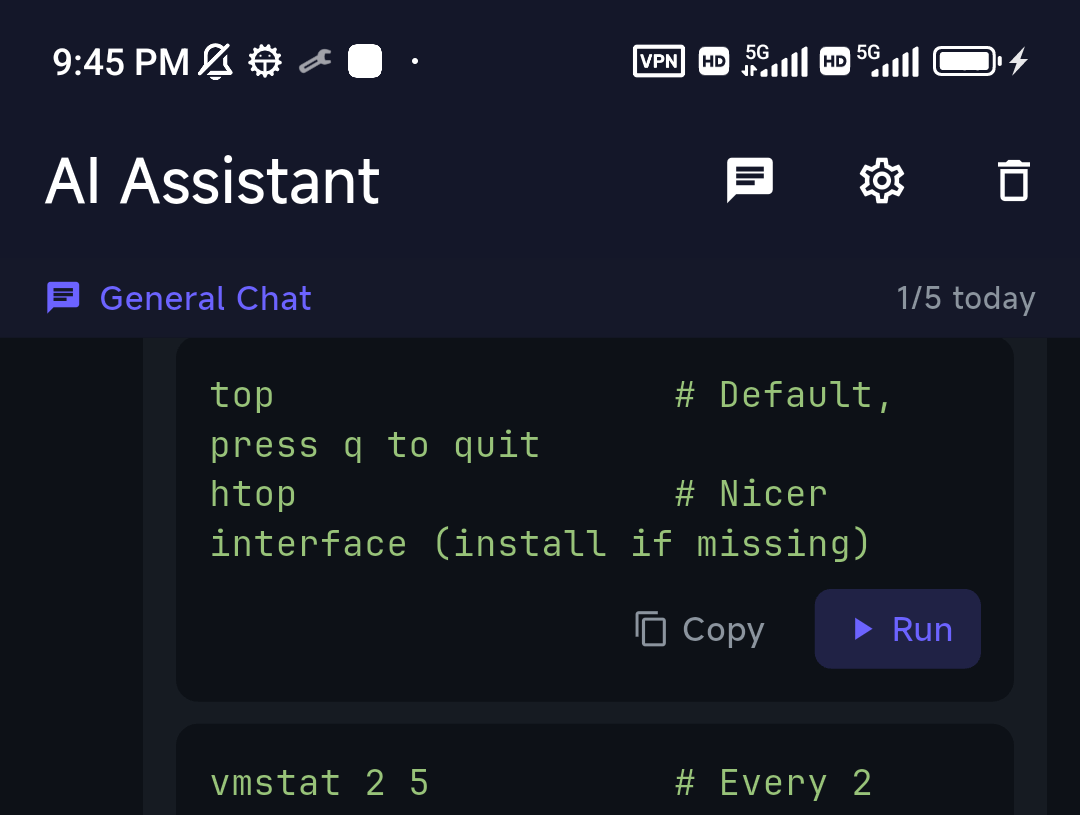
Editing ~/.ssh/config itself from a phone is perfectly doable (nano ~/.ssh/config over SSH, or edit it over SFTP), and remembering the exact keyword is where an in-terminal assistant helps — TermAI's AI reads the live session, so "add a block for db that jumps through bastion as admin" comes back as the actual block to paste, with a Run button. Its free tier includes unlimited SSH, SFTP, built-in Tailscale, and 5 AI requests/day.
FAQ
Where is the SSH config file?
At ~/.ssh/config on Linux and macOS (create it if missing, permissions 600). On Windows it's C:\Users\You\.ssh\config. There's also a system-wide /etc/ssh/ssh_config that applies to every user.
Does ~/.ssh/config exist by default?
No. SSH works fine without it; you create the file yourself the first time you want aliases. Nothing breaks if it's absent.
How do I use a specific key for one host?
Add IdentityFile ~/.ssh/that_key and IdentitiesOnly yes under that host's block — the second line stops the client offering other keys.
What's the difference between Host and HostName?Host is the alias you type (ssh myserver); HostName is the real address it resolves to. Matching happens against what you typed, so connecting by raw IP skips the block.
What's the difference between ssh_config and sshd_config?ssh_config (and ~/.ssh/config) is the client — how you connect out. sshd_config is the server daemon — how a machine accepts connections. Server-side changes need sudo and a service restart; client-side changes take effect on the next connection.
Why is my SSH config being ignored?
Three usual causes: wrong permissions (Bad owner or permissions → chmod 600), an earlier block already set the option (first match wins, so move specific hosts above Host *), or a live ControlMaster connection is being reused (ssh -O exit host). Run ssh -G thehost to see the config SSH will actually use.
Does the order of entries in ~/.ssh/config matter?
Yes. Options are read top-down and the first value found for each one wins. Specific hosts go at the top, Host * at the bottom.
How do I set a jump host / bastion in the config?ProxyJump bastion inside the target host's block (OpenSSH 7.3+); chain hops with commas. On older clients use ProxyCommand ssh -W %h:%p bastion.
Can I use two GitHub accounts with one SSH config?
Yes — define a second alias like github.com-work with HostName github.com, its own IdentityFile, and IdentitiesOnly yes, then clone with [email protected]:org/repo.git.
Can I split my SSH config into multiple files?
Yes, with Include ~/.ssh/config.d/*.conf (OpenSSH 7.3+). Files are inserted where the Include line sits, so keep it near the top.
Does the SSH config file work on Windows?
Yes, with the built-in OpenSSH client, at %USERPROFILE%\.ssh\config. PuTTY ignores it — PuTTY keeps saved sessions in the Registry instead.
Do mobile SSH apps use ~/.ssh/config?
Generally no — they store the same settings per connection in the app's UI. The convenience is identical; it's a form instead of a file. If you want your existing aliases on mobile, SSH to a box that has the config and use them from there.
Quick Facts
- Location:
~/.ssh/config(permissions 600,~/.ssh700); Windows%USERPROFILE%\.ssh\config; system-wide/etc/ssh/ssh_config - Core:
Hostalias →HostName,User,Port,IdentityFile - Most useful options:
IdentitiesOnly yes,AddKeysToAgent yes,ServerAliveInterval 60,ProxyJump,Include - Order: first value wins per option — specific blocks above,
Host *last - Debug:
ssh -G hostprints the effective config;ssh -vshows which blocks applied;ssh -F /dev/nullignores the file - Not the same as
sshd_config, which is the server daemon's file - On mobile: the app stores the same settings per connection — a form, not a file
Free on iOS and Android. 5 AI requests/day on the free tier, plus unlimited SSH/SFTP and built-in Tailscale.