Transferring files over SSH
If you can SSH into a server, you can already move files to and from it securely — over the same encrypted connection, no extra service needed. There are three standard tools: SCP for quick one-off copies, SFTP for browsing and interactive transfers, and rsync for efficient, resumable syncs. On a phone it's easier still: a good SSH client gives you a tap-to-transfer SFTP file browser. Here's when to use each.
SCP — quick one-off copies
SCP copies a file in one command, like cp but across SSH:
# upload a file to the server
scp ./backup.tar.gz user@host:/home/user/

# download a file from the server
scp user@host:/var/log/app.log ./

# a whole folder
scp -r ./site user@host:/var/www/
Best for: a single file or folder, right now, no fuss. It re-copies everything each time — no resume.
SFTP — browse and transfer interactively
SFTP is an interactive file session over SSH — list, navigate, upload, download:
sftp user@host
> ls
> get app.log        # download
> put config.yaml    # upload
> bye
Best for: poking around a server's filesystem when you don't know exactly what you want yet. This is also what mobile apps put a graphical UI on top of. Note: SFTP is file transfer over SSH — it has nothing to do with old, insecure FTP.
rsync — efficient, resumable syncs
rsync only transfers what changed and can resume, which makes it the right tool for big or repeated transfers:
rsync -avz ./site/ user@host:/var/www/site/Best for: backups, deploying a folder you update often, or anything large where re-sending everything would be wasteful. (rsync needs to be installed on both ends.)
From a phone: tap to transfer
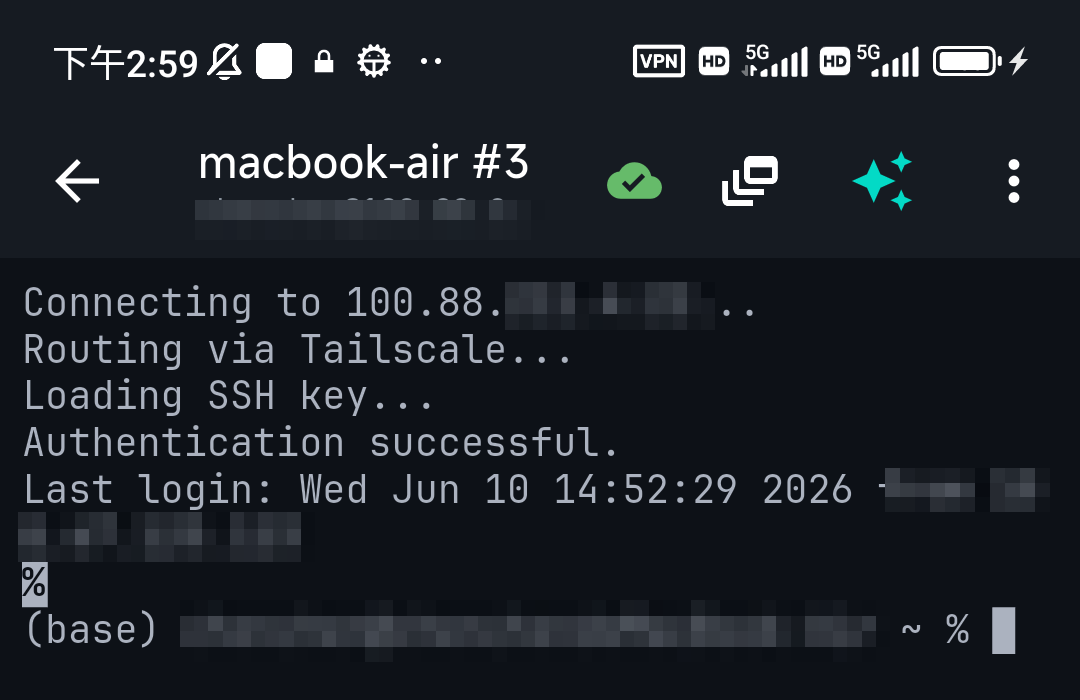
You don't need to remember SCP flags on a phone. A client with an SFTP browser lets you navigate the server's files and upload or download with a tap. In TermAI the SFTP browser sits alongside the terminal, so you can transfer a file and then immediately run a command on the same server — and you can edit text files in place (open a .conf or .env, change a line, save it back) without a separate download/upload dance. See the best SFTP app for iOS.
Which should you use?
- One file, right now → SCP (or the SFTP browser on a phone)
- Browsing / not sure what you need → SFTP
- Big, repeated, or resumable → rsync
- On a phone → the client's SFTP browser (tap to up/download, edit in place)
FAQ
How do I copy a file over SSH?
Use SCP: scp localfile user@host:/path/ to upload, or swap the order to download. On a phone, use the SFTP browser and tap the file.
Is SFTP the same as FTP?
No. SFTP is file transfer tunnelled over SSH — encrypted and on port 22. Plain FTP is old and insecure. Use SFTP.
What's the difference between SCP and rsync?
SCP re-copies everything each time; rsync only sends what changed and can resume, so rsync is better for large or repeated transfers.
Can I transfer files over SSH from a phone?
Yes — an SSH client with an SFTP browser lets you upload and download with a tap, no command flags needed.
Quick Facts
- SCP: one-shot copy, simplest
- SFTP: interactive browse + transfer over SSH (not FTP)
- rsync: only sends changes, resumable — best for big/repeated
- On a phone: tap-to-transfer SFTP browser; TermAI also edits text files in place
Free on iOS and Android. 5 AI requests/day on the free tier, plus unlimited SSH/SFTP and built-in Tailscale.