SSH from Android in about five minutes
You can SSH from an Android phone to any server — a Linux box, a Raspberry Pi, a VPS — with a free app and three pieces of information: the server's address, your username, and either a password or an SSH key. This guide walks through it step by step using TermAI as the example client; the same steps work in any decent Android SSH app.
What you need
- An SSH client for Android — this guide uses TermAI (free tier, no account required to start).
- The server's host — an IP address or hostname (for example
192.0.2.10orpi.local). - A username — such as
root,ubuntu, orpi. - Auth — the account password, or an SSH key (recommended; more on that below).
- Network reachability — your phone must be able to reach the server: same Wi-Fi/LAN, a public IP, or a mesh VPN like Tailscale for machines behind a home router.
Step 1: Install an SSH client
Install TermAI from the Play Store (or your client of choice) and open it. You don't need to sign in to make your first connection — the free tier covers it.
Step 2: Add the connection
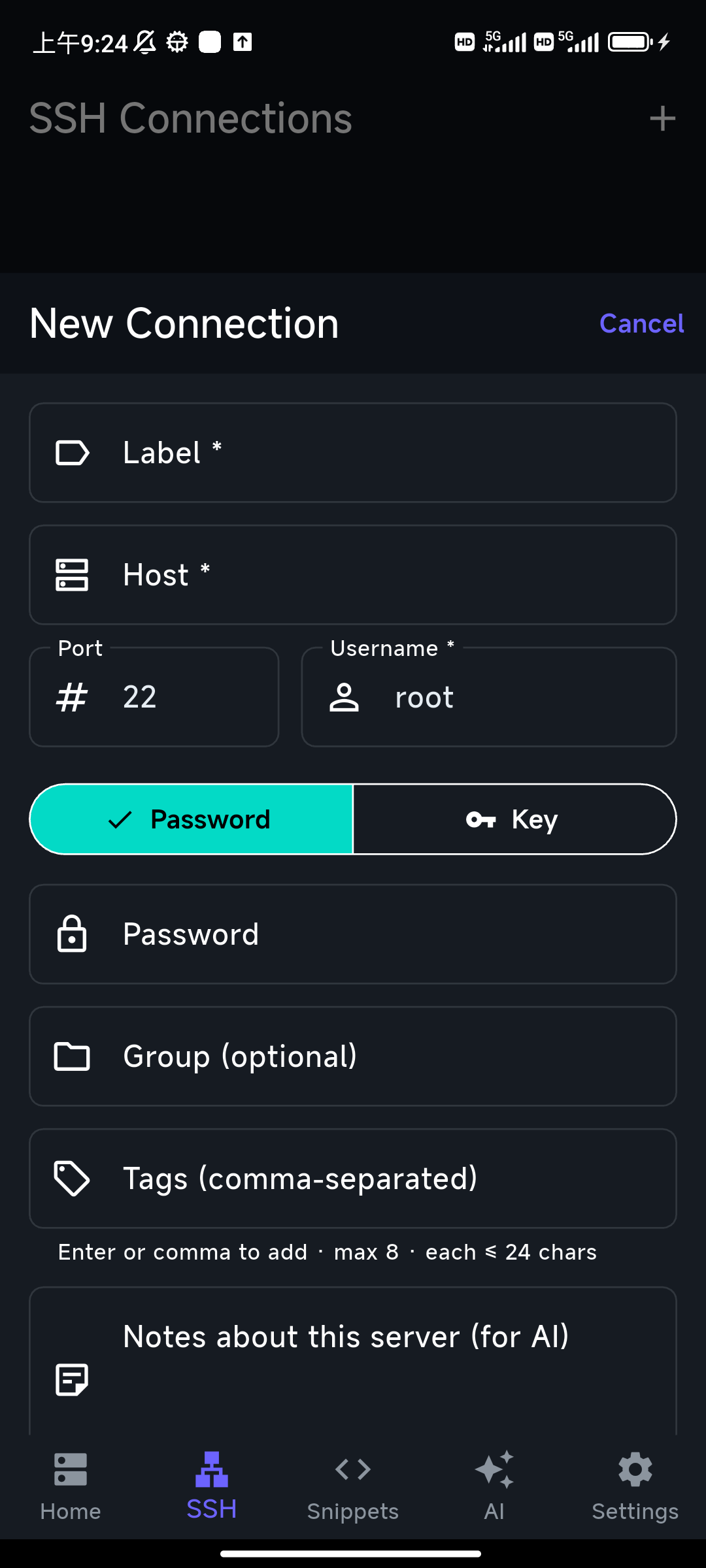
Open the SSH tab and tap Add Connection. Fill in a label, the host, the port (22 unless your server uses a custom one), and your username.
Step 3: Choose password or key authentication
Use the Password / Key toggle to pick how you sign in.
- Password is the quickest to start: just type the account password.
- Key is more secure and the better long-term choice. You can generate a key in the app and add its public half to the server's
~/.ssh/authorized_keys, or import an existing private key. The private key stays in the phone's secure keystore.
If you're just trying things out, password is fine. For anything you'll use regularly, switch to a key.
Step 4: Connect
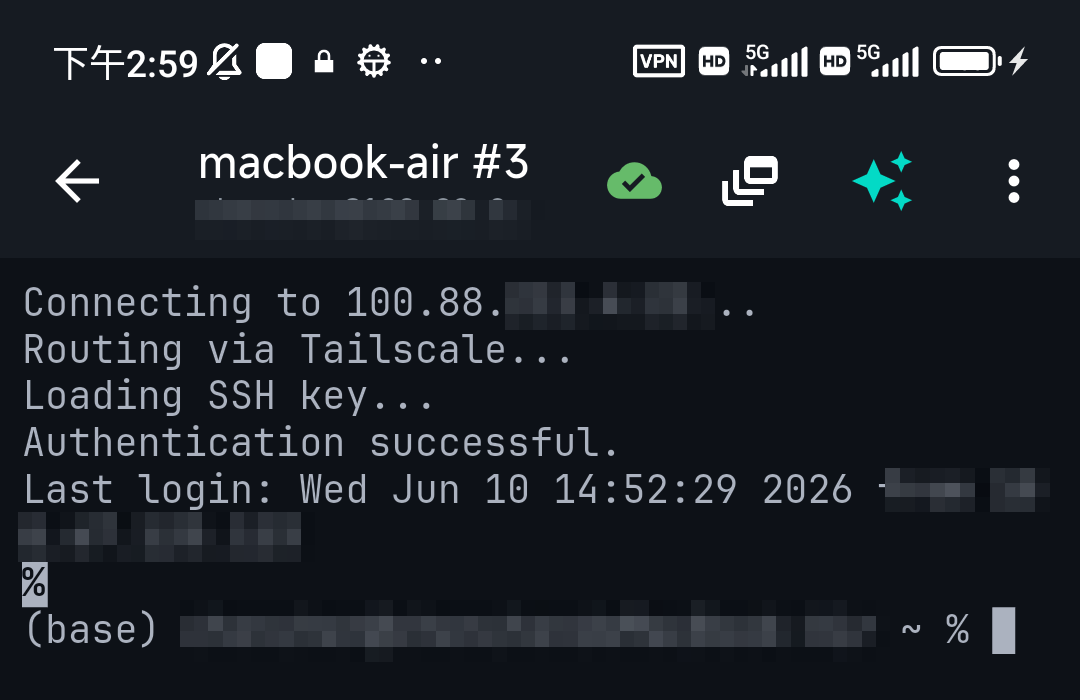
Tap to connect. The first time, you'll be asked to trust the server's host key — that's normal (it's how SSH pins the server's identity). Accept it, and you're at a shell prompt.
Step 5: Use the shortcut keys
The hardest part of a terminal on a phone is the keys a normal keyboard doesn't have. A good Android SSH client adds a row above the keyboard with Esc, Tab, Ctrl, and arrow keys — that's what makes things like Ctrl+C, tab-completion, and editing in vim actually usable. Learn that row and a phone becomes a real terminal.
One more phone-friendly trick: when a command fails, long-press to select the error output and tap 🤖 Ask AI — the assistant gets that exact error as context and explains what went wrong, so you're not squinting at a stack trace and retyping it into a search box.
SSH into a Raspberry Pi from Android
The steps are identical — the only differences are the defaults. The username is usually pi (or whatever you set in Raspberry Pi Imager), and the host is the Pi's IP on your network or its .local name. Make sure SSH is enabled on the Pi (Raspberry Pi Imager can turn it on, or sudo raspi-config → Interface Options → SSH). Then add it as a connection exactly as above.
SSH from Android to a PC, Windows, Ubuntu, or Linux
The connection steps don't change — only the host and username:
- To a Linux box or Ubuntu server — the standard case: use the machine's IP and a user like
ubuntuorroot. Works out of the box on most distros. - To a Windows PC — install the built-in OpenSSH Server (Settings → Optional features), then connect with your Windows username; or SSH into WSL.
- To a PC on your LAN — find its IP (
ip aon Linux,ipconfigon Windows) and connect on the same Wi-Fi; from outside your network, use Tailscale (below).
Troubleshooting the common errors
- Connection refused — the SSH server isn't running or the port is wrong. Confirm
sshdis up and you're using the right port. - Connection timed out — a network/reachability problem. Your phone can't reach the host. On mobile data for a home server, you'll need a public IP, port forwarding, or Tailscale.
- Permission denied / auth failed — wrong username, password, or key. If using a key, confirm its public half is in the server's
authorized_keys. - Host key changed warning — the server's identity doesn't match what was pinned. If you didn't rebuild the server, stop and investigate before continuing.
FAQ
How do I SSH from Android?
Install an SSH client (such as TermAI), add a connection with the server's host, your username, and a password or key, then connect. It takes about five minutes.
What's the best SSH app for Android?
TermAI (AI and Tailscale built in), Termius (cross-platform), JuiceSSH (one-time purchase), and ConnectBot (free, open source) are the main choices. See our full best SSH client for Android comparison.
Can I SSH from Android to a Linux server?
Yes — that's the standard use case. Any Android SSH client connects to Linux, a Raspberry Pi, a VPS, or a Mac the same way.
Do I need root on my phone to use SSH?
No. SSH clients are normal apps and don't require root.
Quick Facts
- Topic: how to SSH from an Android phone, step by step
- What you need: an SSH client, the host, a username, and a password or SSH key
- Time: about 5 minutes for your first connection
- Auth: password is quickest; an SSH key is more secure and recommended
- Raspberry Pi: same steps, username usually
pi; enable SSH on the Pi first - Behind a home router: reach it with a public IP, port forwarding, or Tailscale
Free on iOS and Android. 5 AI requests/day on the free tier, plus unlimited SSH/SFTP and built-in Tailscale.