SSH into a Raspberry Pi from your iPhone
Yes, you can run a headless Raspberry Pi entirely from your iPhone over SSH — no monitor or keyboard needed. The three things to get right: enable SSH on the Pi, find its IP address, and connect from an SSH app with the username pi (or your own). Here's the full walkthrough.
Step 1 — Enable SSH on the Pi
SSH is off by default on a fresh Raspberry Pi OS. Two ways to turn it on:
- During imaging (headless): in Raspberry Pi Imager, open the settings gear and tick Enable SSH, set the username/password, and (optionally) Wi-Fi. This is the cleanest path for a Pi with no screen.
- On an existing Pi: run
sudo raspi-config→ Interface Options → SSH → Enable. Or drop an empty file namedsshonto the boot partition of the SD card.
Step 2 — Find the Pi's IP address
You need the Pi's address on your network:
- Check your router's admin page for a device named
raspberrypi. - Or try the hostname directly:
raspberrypi.localworks on most networks (mDNS). - It'll look like
192.168.1.42.
Step 3 — Connect from your iPhone
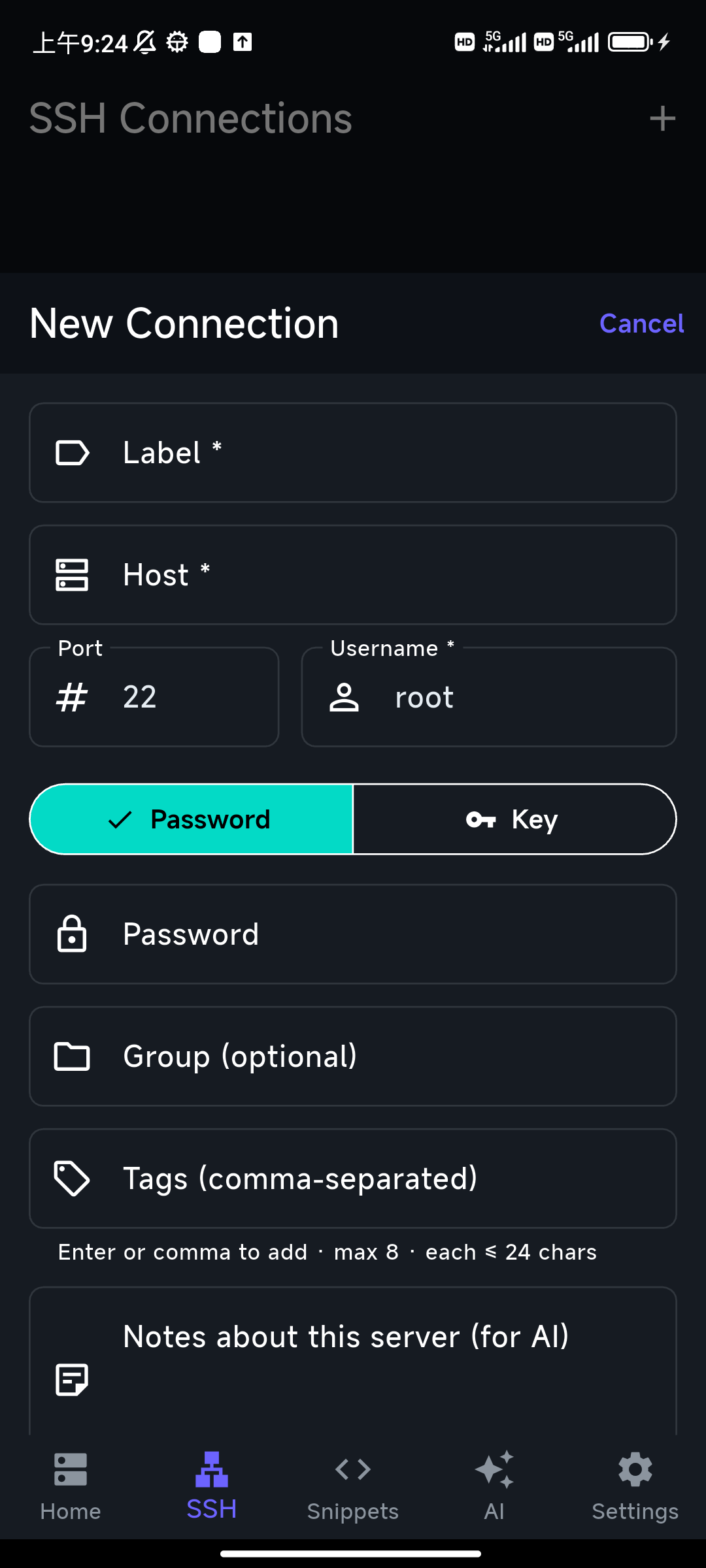
Install an SSH client (options here; this guide uses TermAI) and add a connection:
- Host: the Pi's IP or
raspberrypi.local - Port:
22 - Username:
pi(or the user you set in Imager)
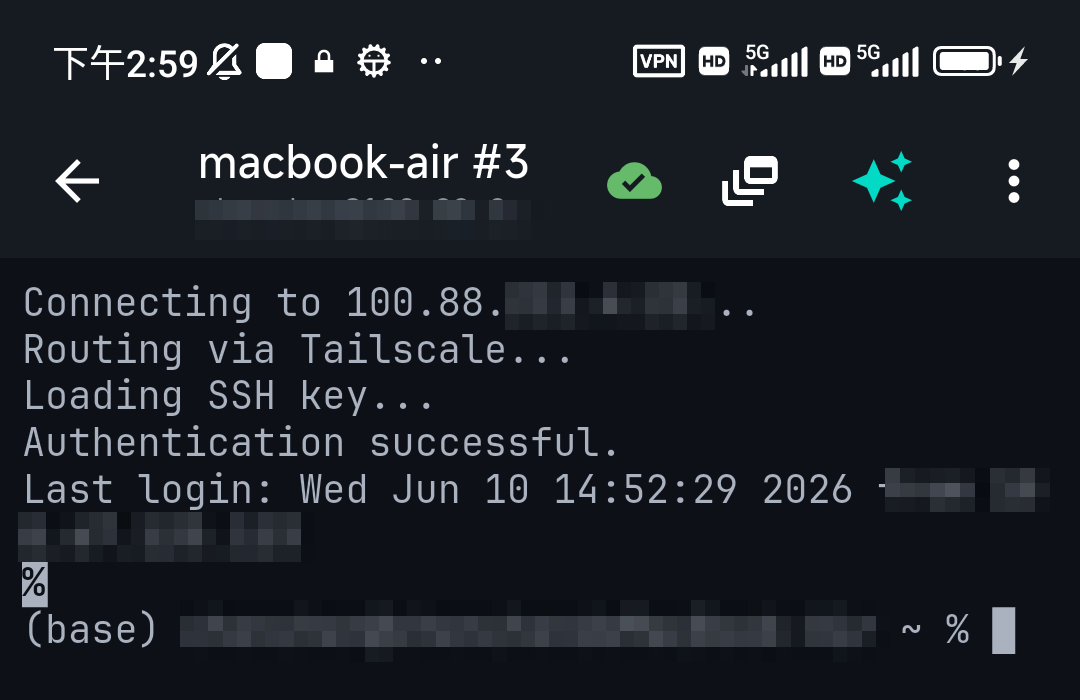
Tap to connect, accept the host-key prompt the first time, and you're at the Pi's shell.
Useful first commands
sudo apt update && sudo apt full-upgrade— get currenthostname -I— confirm the Pi's IPhtop— see what's running (install withsudo apt install htop)- Set up SSH keys so you don't type a password each time (see the iPhone SSH guide).
If you'd rather not look up commands, TermAI's AI assistant lets you describe the task ("show disk usage", "restart the pihole service") and get the command to review and run.
Reaching the Pi when you're away from home
The steps above work on your home Wi-Fi. To SSH into the Pi from anywhere — a café, work, mobile data — don't forward port 22 to the internet. Install Tailscale on the Pi and your phone (or use TermAI's built-in Tailscale), and you can reach the Pi by its private address from anywhere. See Tailscale on iPhone.
FAQ
What's the default Raspberry Pi SSH username and password?
On modern Raspberry Pi OS there is no default — you set the username and password in Raspberry Pi Imager. Older images used pi / raspberry, which you should change immediately.
Why does "raspberrypi.local" not resolve?
Some networks don't support mDNS. Use the Pi's IP address from your router instead.
Can I SSH to the Pi over the internet from my iPhone?
Yes, safely — use Tailscale rather than exposing port 22. TermAI has Tailscale built in.
Quick Facts
- Task: SSH into a Raspberry Pi from an iPhone (headless, no monitor)
- Enable SSH: in Raspberry Pi Imager, or
raspi-config, or ansshfile on /boot - Find IP: router page or
raspberrypi.local - Connect: host = IP, port 22, user =
pior your chosen user - Away from home: use Tailscale, not port forwarding
Free on iOS and Android. 5 AI requests/day on the free tier, plus unlimited SSH/SFTP and built-in Tailscale.