SSH into a Raspberry Pi from Android
A Raspberry Pi is usually headless — no monitor, no keyboard — so SSH is how you actually use it, and your Android phone is a perfectly good way in. The steps: make sure SSH is enabled on the Pi, find the Pi's IP address, then connect from an Android SSH client with the Pi's IP, the username, and your password or key. This guide covers each step plus the common snags.
Step 1 — Enable SSH on the Pi
On Raspberry Pi OS, SSH is off by default. Two ways to turn it on:
- If you have a screen:
sudo raspi-config→ Interface Options → SSH → enable. Or justsudo systemctl enable --now ssh. - Headless (no screen): when flashing the SD card with Raspberry Pi Imager, open the settings (gear icon) and enable SSH and set the username/password there. Or drop an empty file named
sshinto the boot partition before first boot.
Step 2 — Find the Pi's IP address
You need the Pi's address on your network. Easiest options: check your router's list of connected devices, or if MagicDNS/hostname works try raspberrypi.local. On the Pi itself, hostname -I prints it. It'll look like 192.168.1.42.
Step 3 — Connect from your Android SSH client
Install an Android SSH client (see the best SSH app for Android), then add a connection:
- Host: the Pi's IP (e.g.
192.168.1.42) - Port: 22
- Username: the one you set (often
pior your own) - Auth: your password, or better, an SSH key
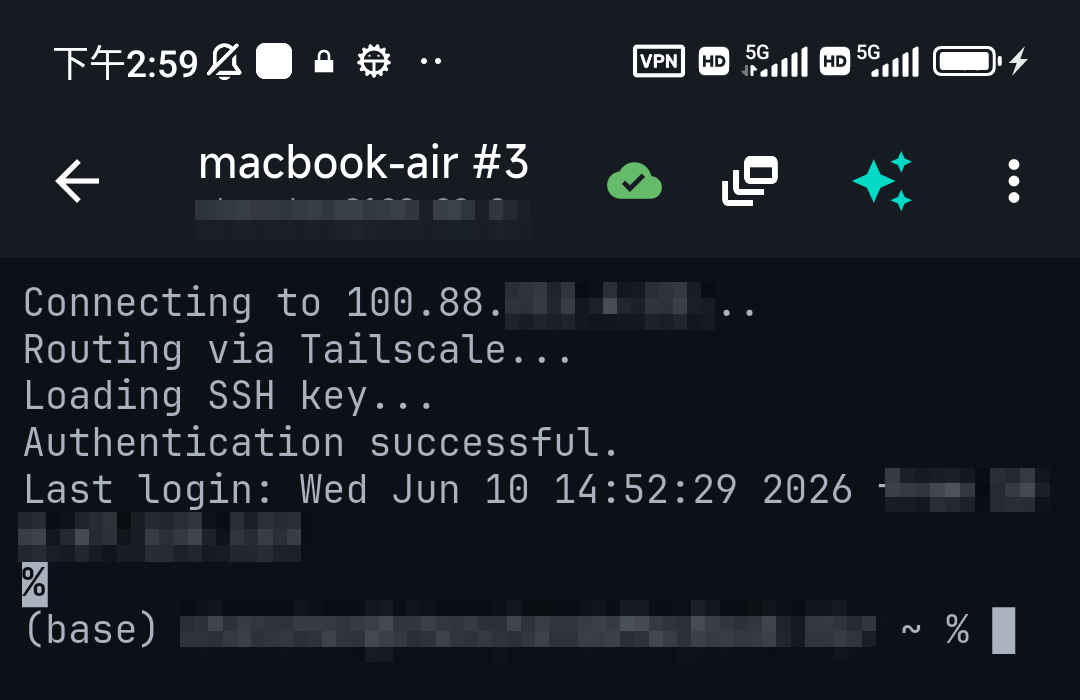
Tap connect, accept the host key fingerprint the first time, and you're at the Pi's shell.
Step 4 — Use a key (recommended)
Once it works with a password, switch to an SSH key — it's more secure and saves typing. A good Android client generates the key on the phone and can install the public key on the Pi for you; TermAI generates an Ed25519 key and can deploy it in a tap. See SSH keys vs passwords.
Don't remember a Pi command? Ask
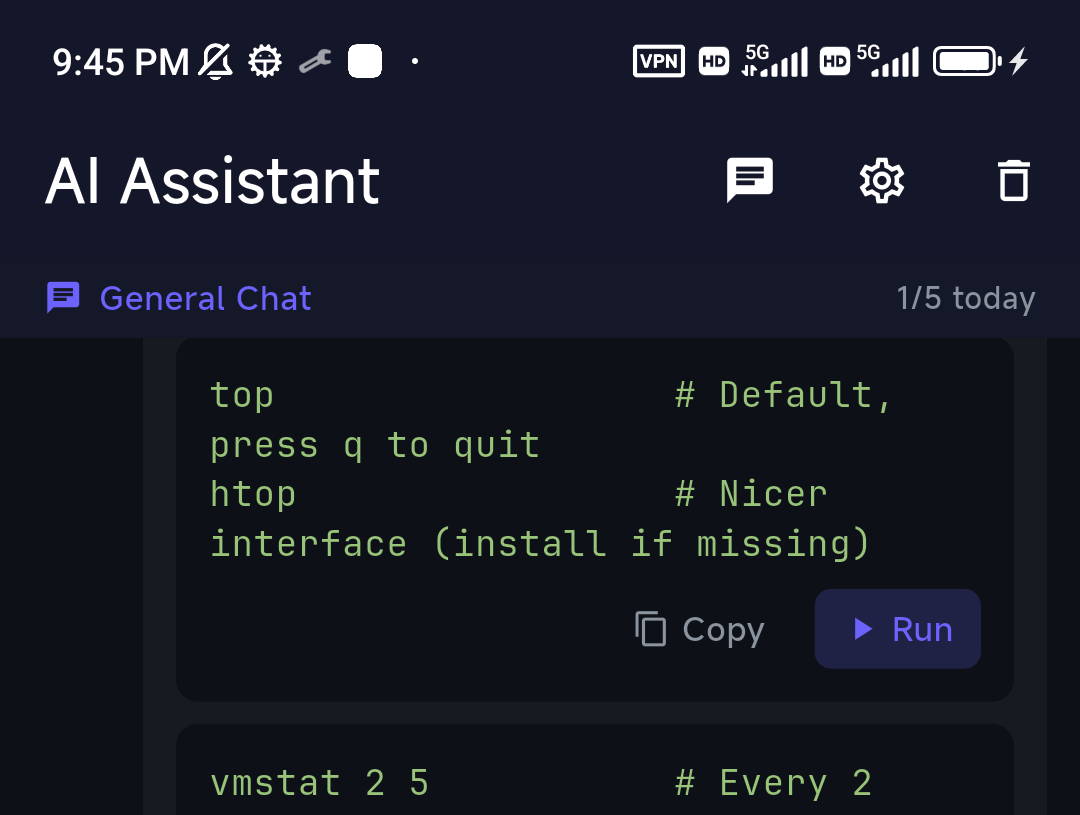
Raspberry Pi admin involves commands you might not use often — raspi-config, enabling I2C, checking the throttle state with vcgencmd. Describe what you want to TermAI's assistant and it gives the command to review and run, grounded in the Pi you're connected to.
Reaching the Pi when you're away
The steps above work on your home network. To reach the Pi from mobile data, don't forward port 22 to the internet — install Tailscale on the Pi and your phone (or use TermAI's built-in Tailscale) and SSH to the Pi's private address from anywhere. See Tailscale on mobile.
FAQ
How do I SSH into a Raspberry Pi from Android?
Enable SSH on the Pi, find its IP, then use an Android SSH client with that IP, port 22, your username, and a password or key.
What's the default Raspberry Pi SSH login?
On older images it was pi / raspberry, but current Raspberry Pi OS makes you set the username and password when flashing — there's no default password anymore.
Why can't I connect to my Pi over SSH?
Common causes: SSH isn't enabled, wrong IP, the Pi isn't on the network yet, or you're trying to reach a private IP from outside your network (use Tailscale for that).
Quick Facts
- Enable SSH: raspi-config, or set it in Raspberry Pi Imager when flashing
- Find the IP: router device list,
raspberrypi.local, orhostname -I - Connect: Android SSH client → Pi IP, port 22, username, key
- Remote: use Tailscale, not port forwarding
Free on iOS and Android. 5 AI requests/day on the free tier, plus unlimited SSH/SFTP and built-in Tailscale.