Managing a VPS from your phone
A VPS — a cloud server from DigitalOcean, Linode, Hetzner, Vultr, or AWS Lightsail — is just a Linux box with a public IP, and you administer it over SSH like any other. That means you can do it from a phone: connect with an SSH client, run commands, deploy, check logs. The one difference from a homelab box is that a VPS is exposed to the public internet, so the security basics matter more. This guide covers connecting, the first-day hardening, and the day-to-day.
Step 1 — SSH into the VPS
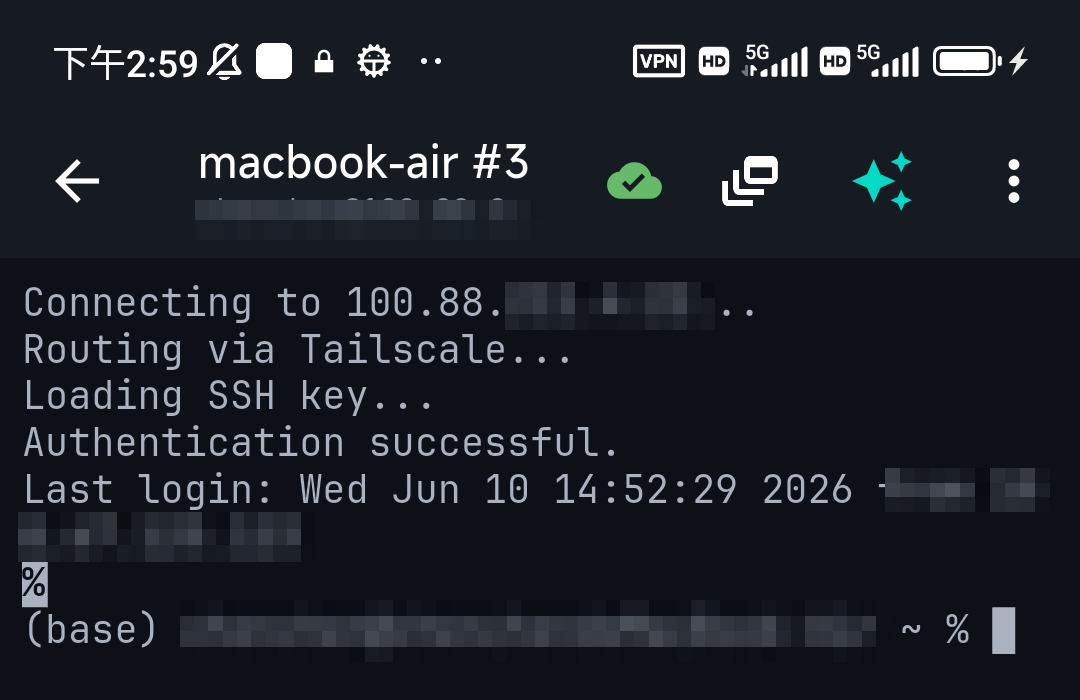
Your provider gives you a public IP (and usually a root password or a pre-installed key) when you create the server. In a mobile SSH client (iPhone / Android), add a connection: host = the public IP, port 22, user = root (or the provider's default like ubuntu). Unlike a home server, a VPS is reachable directly — no Tailscale needed to get in, though you can still add it.
Step 2 — Harden it on day one
Because a VPS faces the public internet, bots will start trying to log in within minutes. Do these first, all possible from the phone:
- Create a sudo user and switch off root login (how to disable root login).
- Use an SSH key and turn off password auth (keys vs passwords) — TermAI can generate an Ed25519 key and deploy it for you.
- Enable the firewall — allow SSH (and your app's ports), deny the rest:
ufw allow OpenSSH && ufw enable. - Optionally fail2ban to ban repeat offenders.
Step 3 — The day-to-day
After setup, running a VPS from a phone is the same small commands you'd run anywhere:
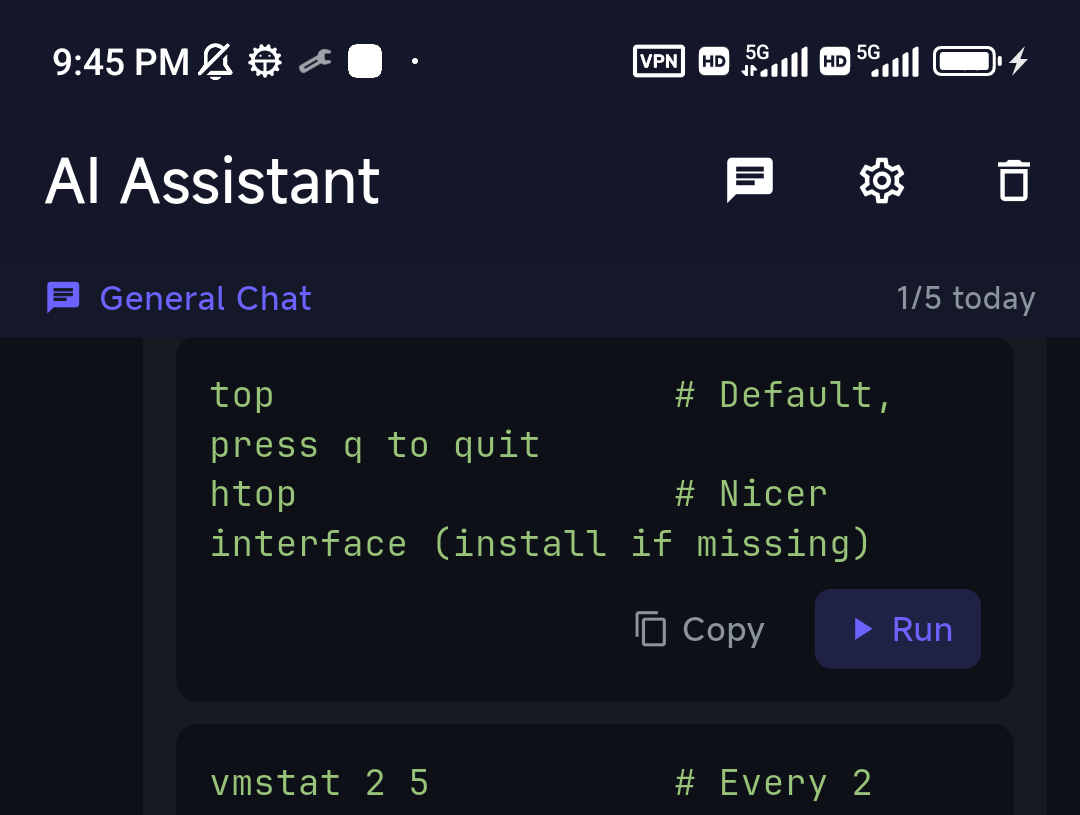
systemctl restart <service>— bounce a servicejournalctl -fu <service>— tail its logsdocker compose pull && up -d— update containers (Docker from a phone)df -h/htop— check disk and loadapt update && apt upgrade— patch the box
Where AI helps
On a phone, the friction is remembering exact commands and reading log output. Describe what you want — "open port 443 in the firewall", "why did nginx fail to start" — and TermAI gives you the command to review and run, grounded in the actual server (it knows the distro, the live disk/memory, and the recent output). When you tail a log, it can hand the last 100 lines to the AI for a quick diagnosis.
Do you need Tailscale for a VPS?
Not to connect — a VPS has a public IP you can reach directly. But putting SSH behind Tailscale and closing port 22 to the public internet is a strong security upgrade: only your devices can even reach SSH, so the brute-force bots have nothing to hit. TermAI has Tailscale built in if you want to go that route. See Tailscale vs WireGuard.
FAQ
Can I fully manage a VPS from my phone?
Yes — connect, harden, deploy, monitor, and fix over SSH. Big config edits are still comfier on a laptop, but the day-to-day is entirely phone-friendly.
How do I connect to a DigitalOcean/Linode/Hetzner server from my phone?
Use an SSH client app with the server's public IP, port 22, and the user/key your provider gave you. The provider's brand doesn't change anything — it's standard SSH.
Is it safe to manage a VPS from a phone?
Yes, with the day-one basics: key auth, no root login, a firewall, and ideally SSH behind Tailscale. The risk is an unhardened VPS, not the phone.
Quick Facts
- A VPS = a Linux box with a public IP (DigitalOcean, Linode, Hetzner, Vultr, Lightsail); manage it over SSH
- Day one: sudo user, key auth, no root login, firewall
- Day-to-day: restart / logs / deploy / patch — all standard SSH commands
- Extra security: put SSH behind Tailscale and close port 22 publicly
Free on iOS and Android. 5 AI requests/day on the free tier, plus unlimited SSH/SFTP and built-in Tailscale.