Can you SSH from an iPad?
Yes — and with a keyboard, an iPad is a genuinely good SSH machine. iPadOS has no built-in terminal, but an SSH client app gives you a full terminal to reach a Linux server, your Mac, a PC, or a Raspberry Pi and run real commands. This guide walks through it step by step. Screenshots are from TermAI, but the flow is the same in any modern client. (New to the app in general? See the visual getting-started guide; for a client comparison, the best SSH client for iPad.)
Step 1 — Install an SSH client
Get an SSH client from the App Store. This guide uses TermAI (AI command assistant, built-in Tailscale, free tier), but the steps are nearly identical in Blink, Termius, or Prompt 3. On iPad the same app you'd run on your iPhone works — TermAI lays the tabs along the side to use the larger screen.
Step 2 — Add a connection
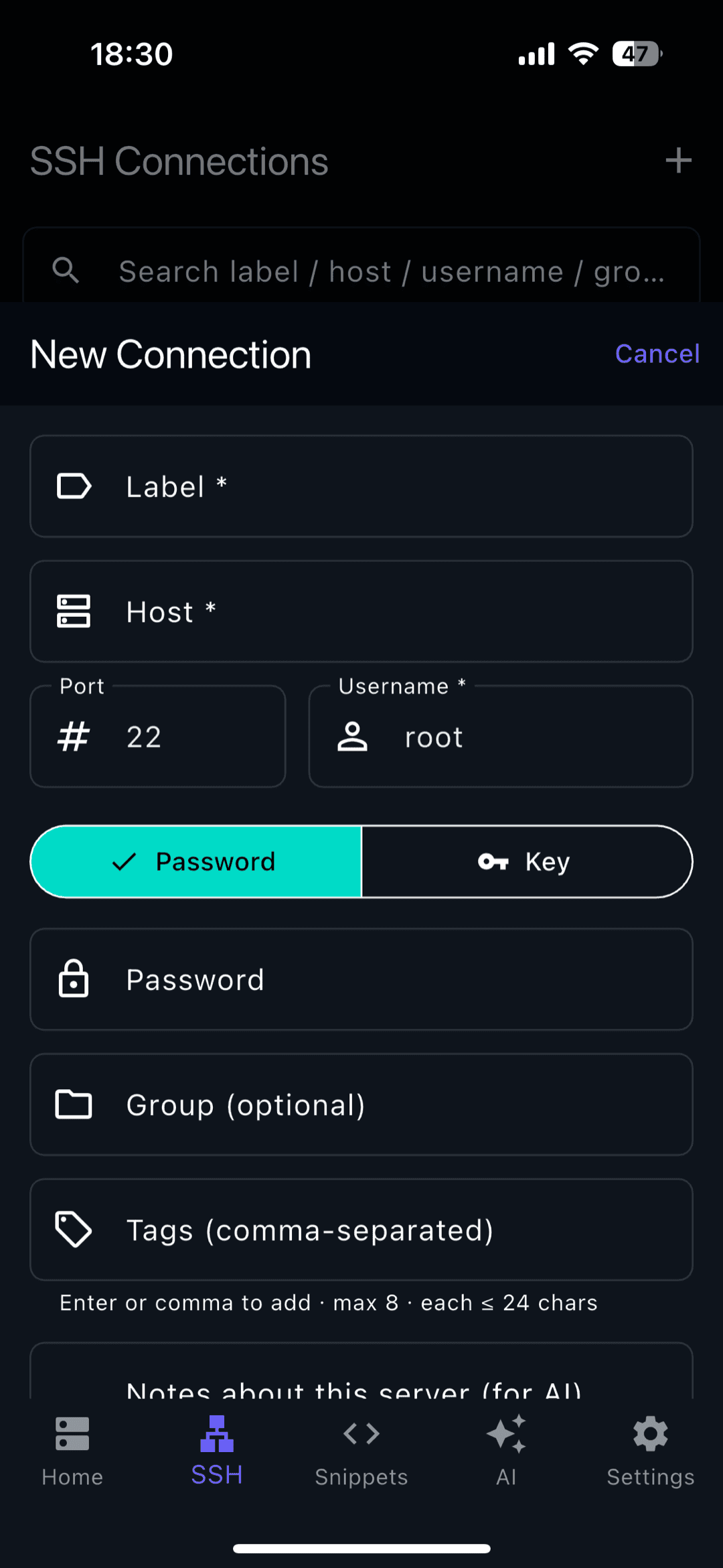
Create a new connection and fill in three things:
- Host — the server's IP or hostname (e.g.
192.168.1.50ormyserver.example.com) - Port —
22unless your server uses a custom one - Username — your login on that server (e.g.
root,ubuntu,pi)
Step 3 — Choose how you authenticate
Two options:
- Password — simplest to start: type your server password when prompted.
- SSH key — more secure and the right long-term choice. Generate or import a key in the app, then add its public key to the server's
~/.ssh/authorized_keys. After that you connect with no password. Choosing a type? See Ed25519 vs RSA.
Step 4 — Connect
Tap the connection. On the first connect you'll see a host-key fingerprint prompt — that's normal and a good thing (it pins the server's identity so nobody can impersonate it later). Accept it once and you're at a shell.
Making the most of the iPad: keyboard & Split View
This is where the iPad beats a phone:
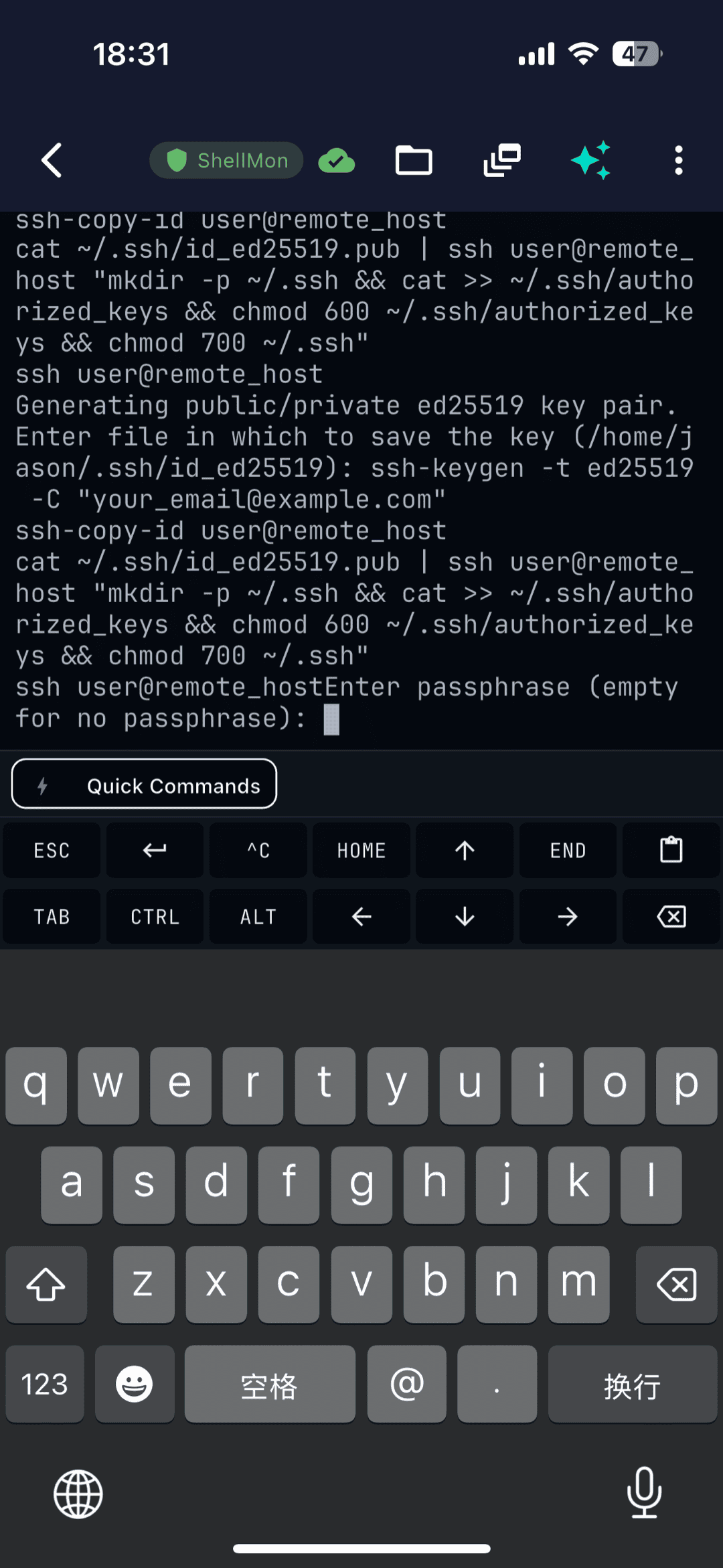
- Hardware keyboard. With a Magic or Smart Keyboard you get real Esc, Ctrl, Tab, and arrow keys — so Ctrl+C, tab-completion, and editing files in vim feel native. When the keyboard is detached, the on-screen special-keys row covers the same shortcuts.
- Split View / Stage Manager. Run the terminal beside Safari or a runbook and follow the steps as you type them — the iPad's real edge over a phone.
- Trackpad. With a trackpad you can select output and scroll like a laptop.
SSH from iPad to a Mac, PC, or Raspberry Pi
The steps are the same; only the host details change:
- To a Mac — enable Remote Login in System Settings → General → Sharing, then connect with host = the Mac's IP and your macOS username.
- To a PC (Windows) — install the built-in OpenSSH Server (Settings → Optional features), then connect with your Windows username; or SSH into WSL.
- To a Raspberry Pi — enable SSH (
sudo raspi-config→ Interface Options → SSH, or drop an emptysshfile on the boot partition), find its IP, connect with usernamepi. See the iPhone-to-Pi guide — identical on iPad. - To a Linux VPS — use the IP and user from your host (often
rootorubuntu).
Reaching a machine outside your network
SSH works instantly on your local Wi-Fi. To reach a home or office machine while you're out, don't forward port 22 to the internet. The easy, safe path is a mesh VPN like Tailscale — TermAI has it built in, so you connect to the private address from anywhere with no port forwarding. See Tailscale SSH on mobile.
FAQ
Can you SSH from an iPad?
Yes. iPadOS has no built-in terminal, but an SSH client app gives you a full terminal. With a keyboard the iPad works much like a laptop for server admin.
Is there a terminal on iPad?
Not built in. Install an SSH client (TermAI, Blink, Termius, Prompt 3) for a real terminal; local shells like iSH run tools on-device but aren't for connecting to servers.
Do I need a keyboard to SSH from an iPad?
No — the on-screen special-keys row covers Esc/Ctrl/Tab/arrows. But a hardware keyboard makes heavier terminal work much nicer.
How do I SSH from iPad to my Mac?
Turn on Remote Login on the Mac (Settings → General → Sharing), then connect from the iPad with the Mac's IP and your macOS username.
Quick Facts
- Task: SSH from an iPad to a Linux server, Mac, PC, or Raspberry Pi
- Needed: an App Store SSH client (no jailbreak)
- Connection: host (IP/hostname) + port 22 + username
- Auth: password to start; SSH key for anything serious
- iPad edge: hardware keyboard + Split View make it laptop-like
- Remote access: use Tailscale instead of forwarding port 22
Start with Free on iOS or Android. Current connection limits, AI allowances and subscription terms are shown in the app before purchase.