What you'll do
This is a visual walkthrough of TermAI from install to a working SSH session with AI help — about five minutes end to end. You'll create an account, add your first server, ask the AI assistant for a command and run it, save a snippet, and (optionally) reach a private server over Tailscale. Every step has a screenshot so you know exactly what to tap.
TermAI is free to start (5 AI requests a day, unlimited SSH), on both iOS and Android. You don't need a desktop.
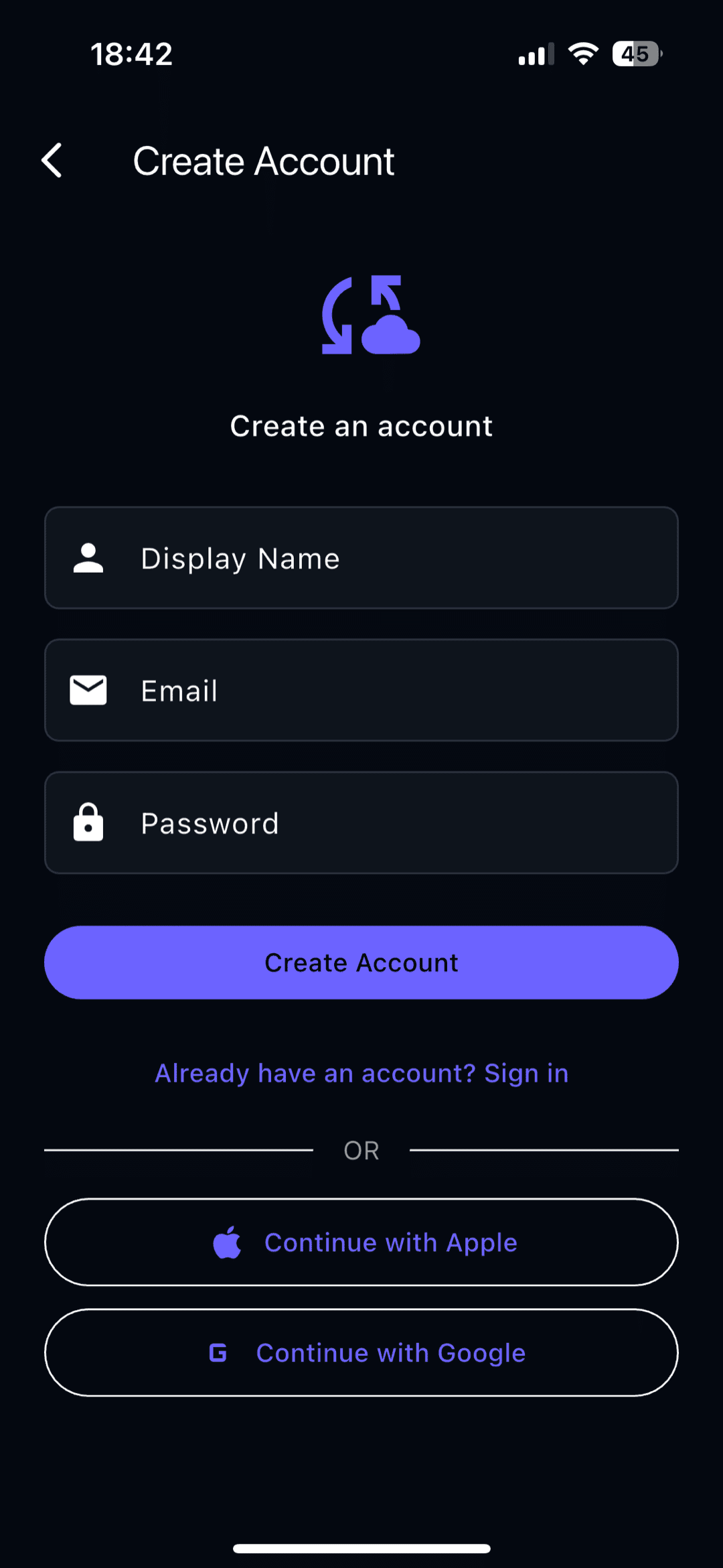
Step 1 — Create your account
Open the app and create an account with your email, or sign in with a one-time code. You can make your first SSH connection without any subscription — the account just syncs your hosts and settings and unlocks the AI assistant's free tier.
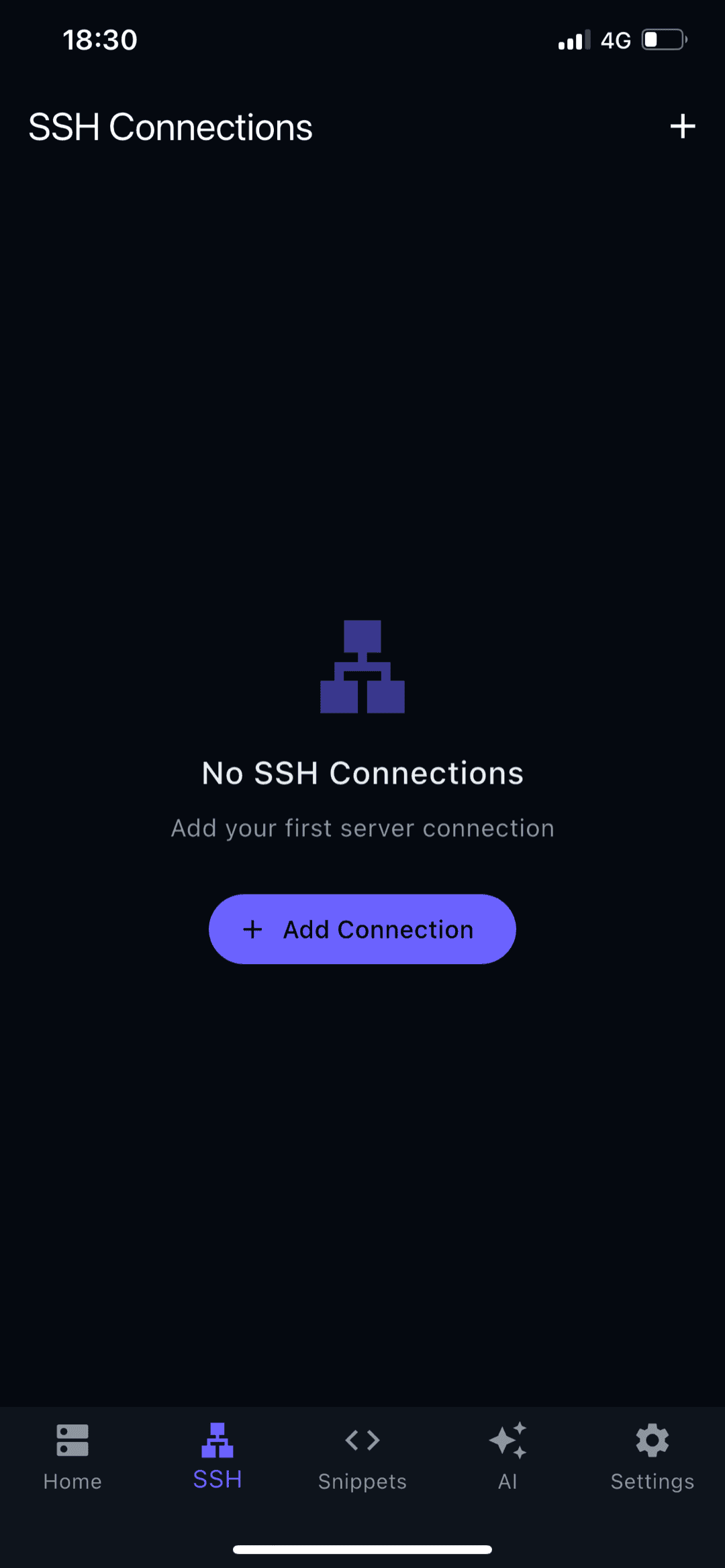
Step 2 — Add your first SSH connection
This is the core of the app. Open the SSH tab. On a fresh install it's empty — tap Add Connection to create your first host.
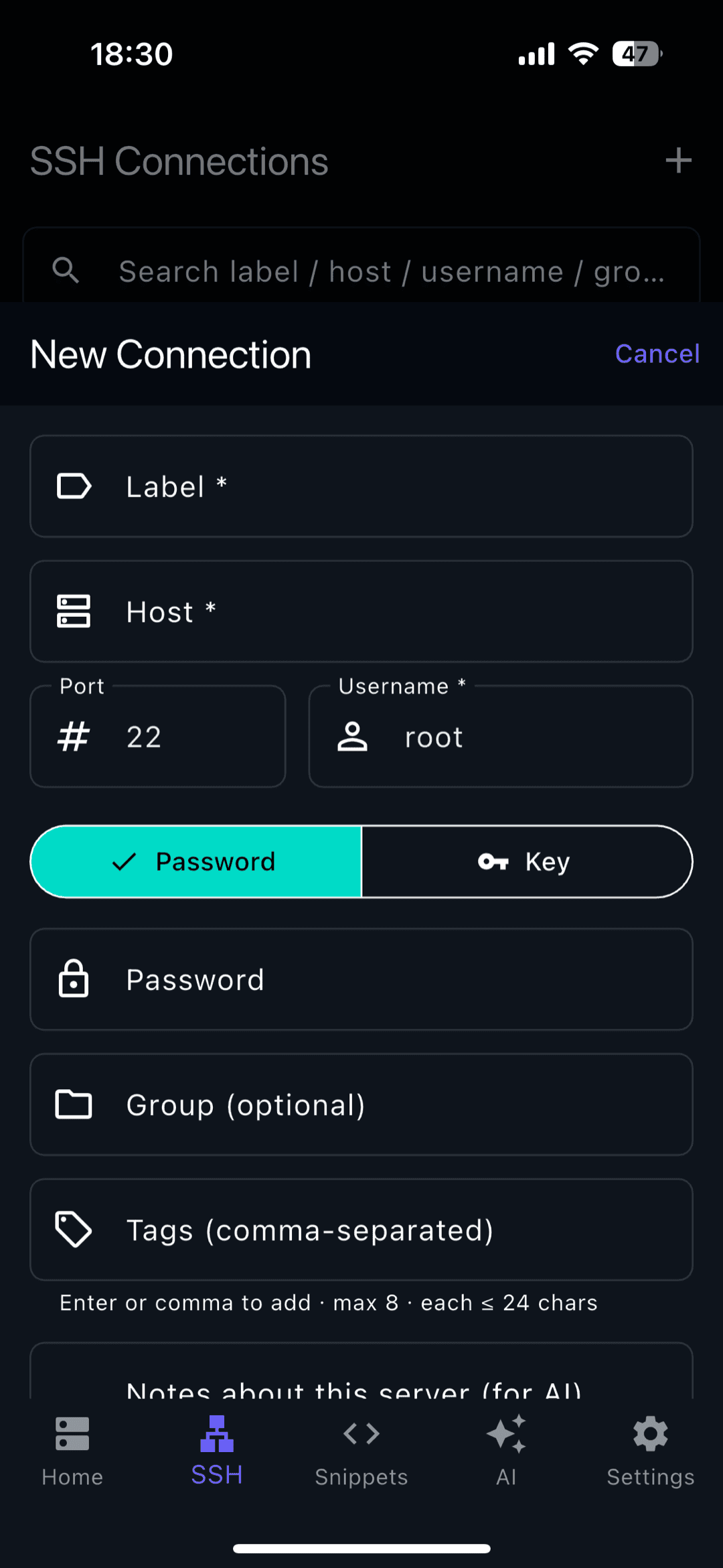
Fill in the connection details: a label (any name you like), the host (IP or hostname), the port (22 unless you changed it), and your username (often root, ubuntu, or pi). Use the Password / Key toggle to pick how you sign in — password is fastest to start; an SSH key is more secure and recommended for regular use. Keys stay in the phone's secure keystore.
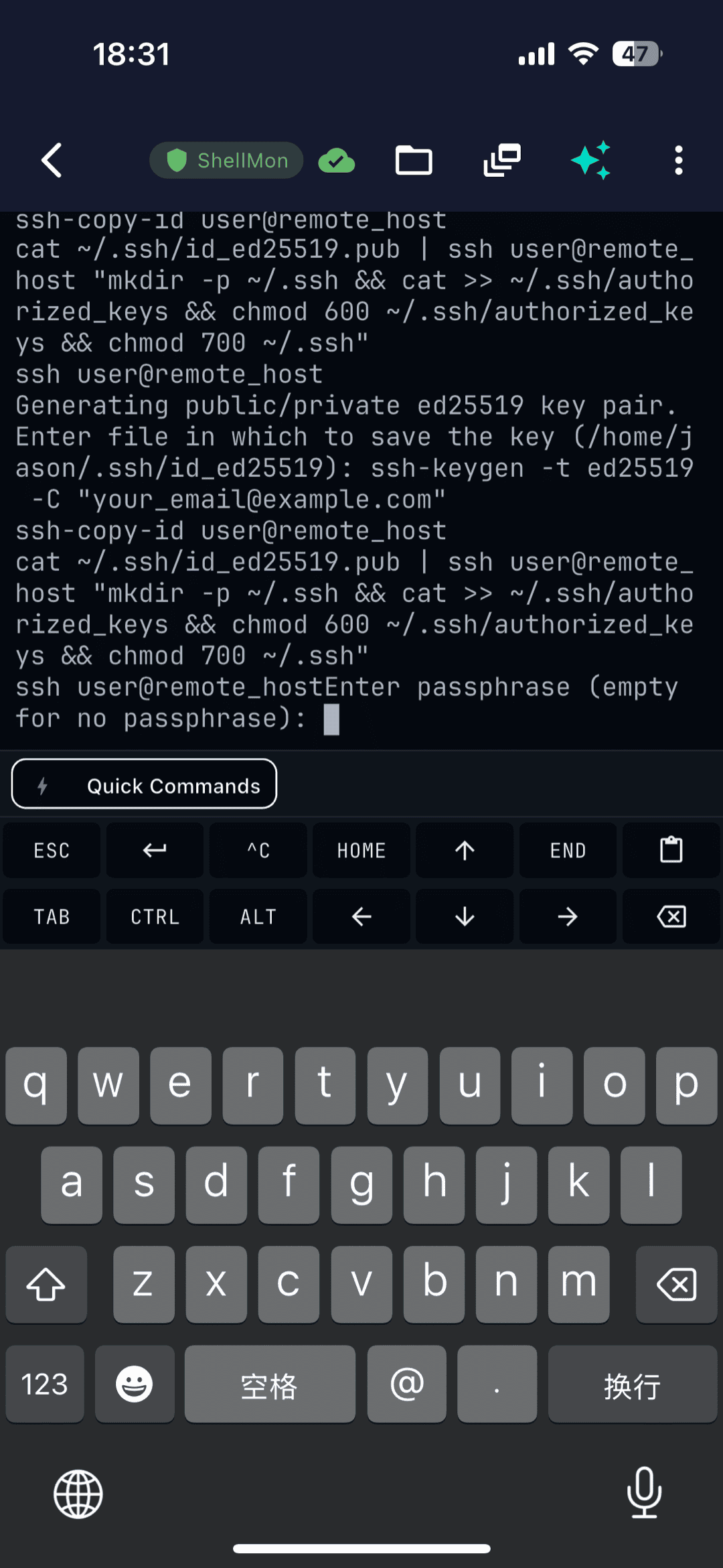
Tap to connect. On the first connection you'll confirm the server's host key (this is normal — it pins the server's identity so you'd be warned if it ever changes). Then you're at a real shell prompt. The row of Esc / Tab / Ctrl / arrow keys above the keyboard makes the terminal usable one-handed — that's how you send Ctrl+C, tab-complete, or edit a file in vim.
Step 3 — Ask the AI assistant
Tap the AI tab (or the sparkle icon in a terminal). Describe what you want in plain English — "how do I set up SSH keys?", "why is my disk full?", "write a command to find the 10 biggest files". The assistant answers with the exact command, explains it, and stays grounded in the server you're connected to.
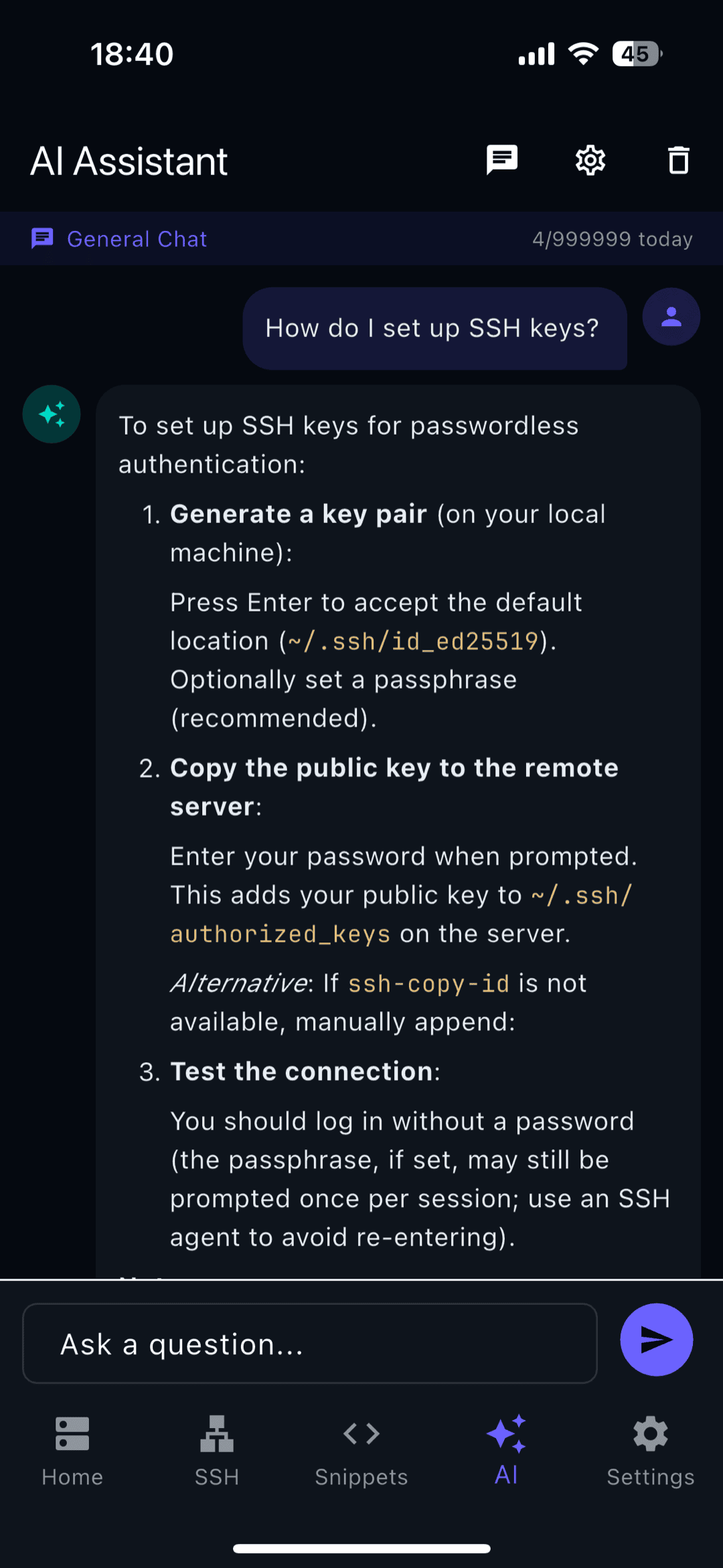
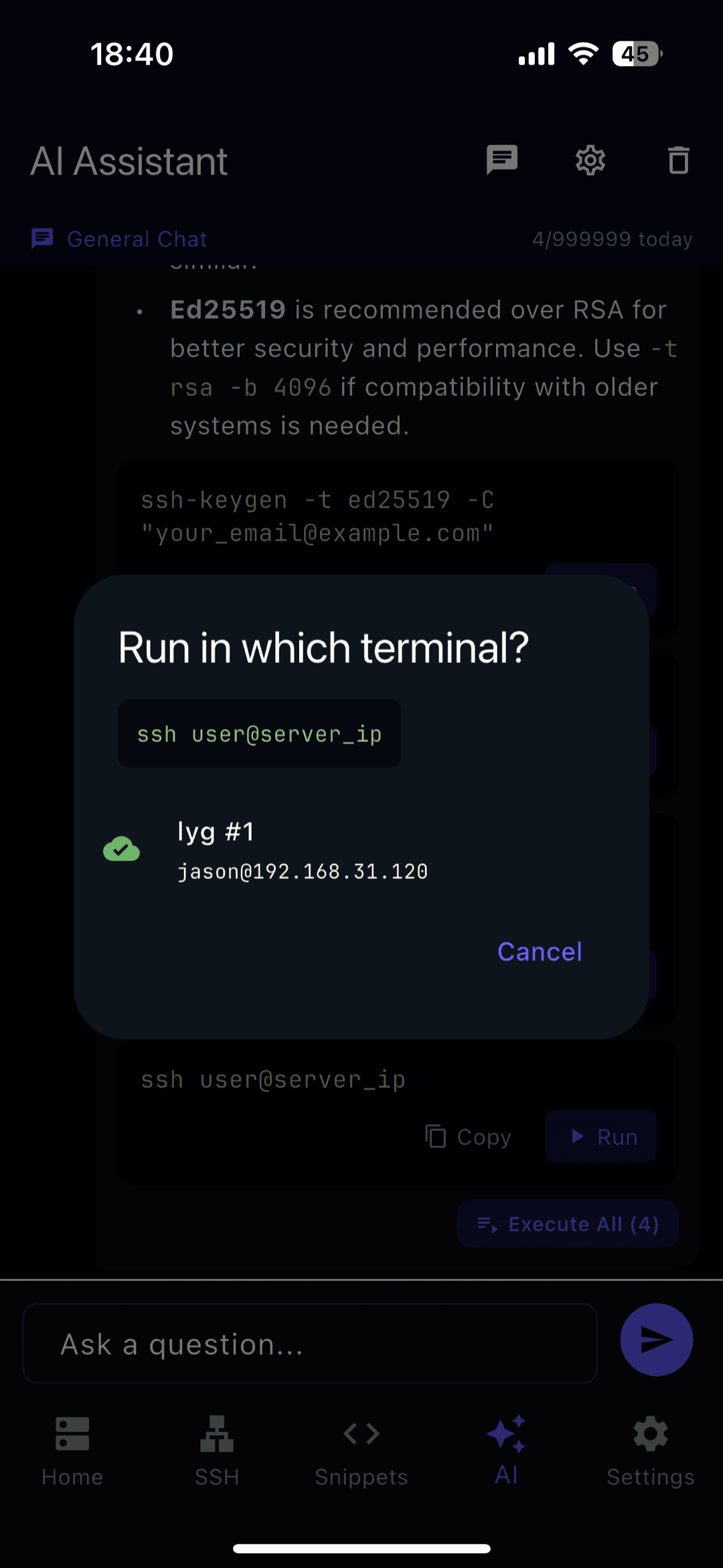
When a suggested command looks right, tap Run to drop it straight into the terminal. Anything destructive (like rm -rf) asks for an extra confirmation first, so the AI can help without surprises.
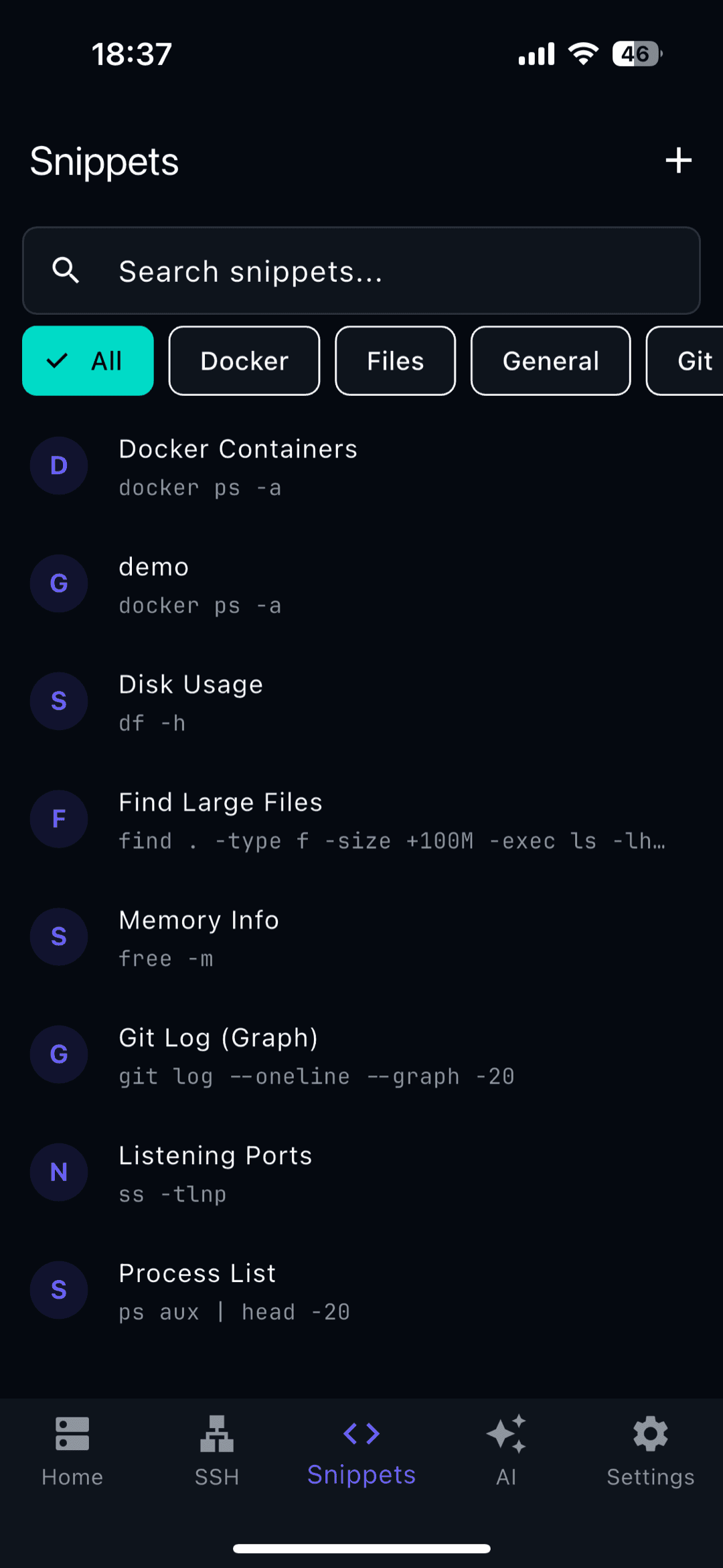
Step 4 — Save command snippets
Commands you run often — restarting a service, tailing a log, checking disk — can be saved as snippets and reused with a tap instead of retyping them on a phone keyboard. Organize them by category and copy or run them from the Snippets tab.
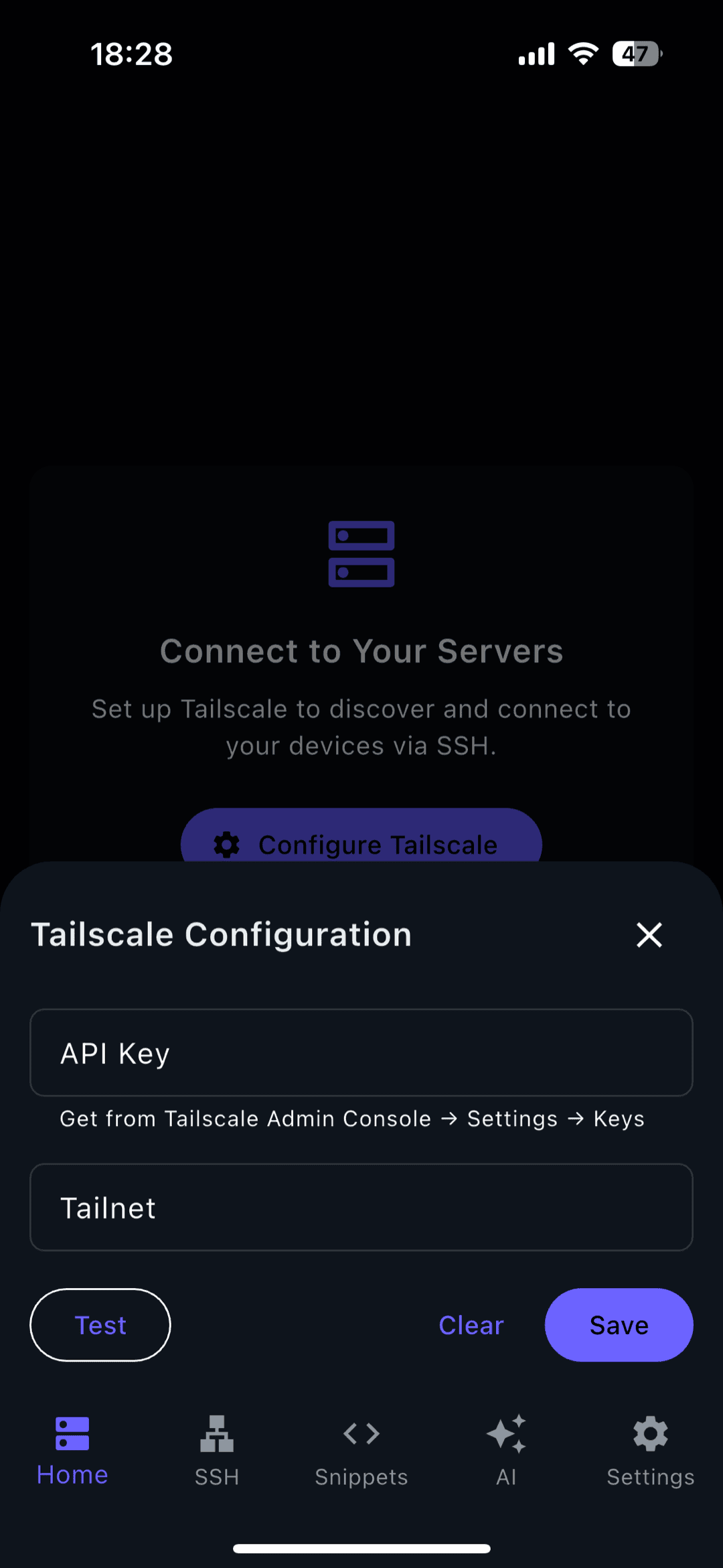
Step 5 — Reach private servers with Tailscale (optional)
Home-lab boxes and work servers usually aren't on the public internet. TermAI has Tailscale built in, so you can reach them without a separate VPN app or port forwarding. Paste your auth key once, and your private devices show up as connectable hosts.
Full details in Tailscale SSH on mobile (or Tailscale on iOS for the iPhone setup).
Step 6 — Safety rails with ShellMon
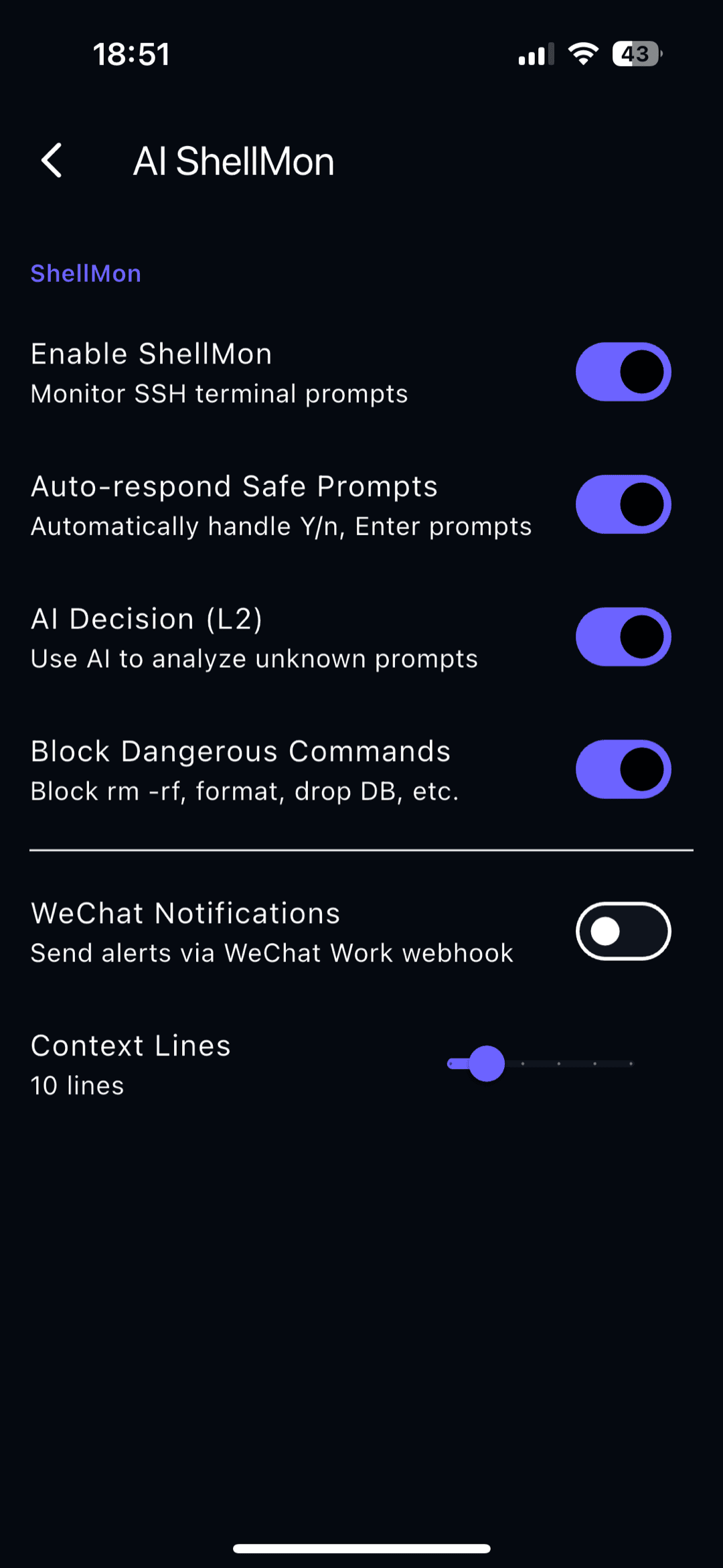
ShellMon watches your session for risky prompts and dangerous commands — it can auto-answer safe confirmations, warn before something destructive runs, and even ask the AI to judge a borderline command. It's a safety net for running real commands on real servers from a phone.
Plans
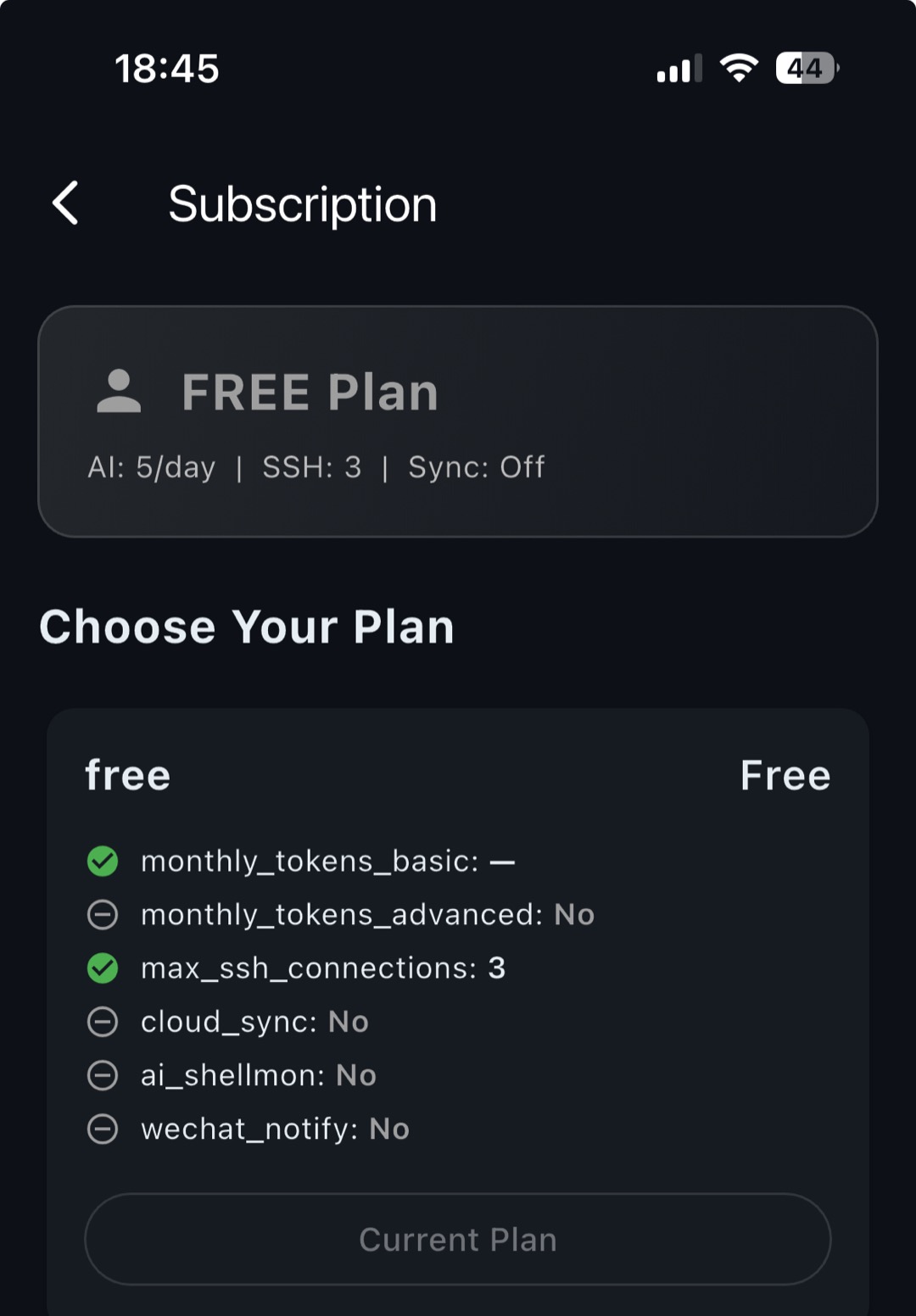
The free tier is enough to connect and try the AI (5 AI requests a day, unlimited SSH). Pro ($2.99/mo) lifts the AI limits and unlocks the stronger models plus cloud sync; Team adds more for small groups. You can do everything in this guide on the free tier first.
FAQ
Do I need a computer to use TermAI?
No. Everything — adding servers, connecting, keys, AI, file transfer — happens on your phone.
Is it free?
Yes, to start: unlimited SSH and 5 AI requests a day on the free tier. Pro raises the AI limits and adds stronger models and cloud sync.
Where are my passwords and keys stored?
Secrets live in the device's secure keystore. With cloud sync on (Pro), connection metadata syncs encrypted so you can restore on a new device.
Can I reach a server that isn't on the public internet?
Yes — use the built-in Tailscale (Step 5) to reach private home-lab or work servers without port forwarding.
Quick Facts
- Topic: getting started with TermAI (visual walkthrough)
- Time to first connection: ~5 minutes
- Platforms: iOS and Android; no desktop required
- Free tier: unlimited SSH + 5 AI requests/day
- Core flow: create account → add SSH host → ask AI → run command
- Private servers: built-in Tailscale, no separate VPN app
Free on iOS and Android. 5 AI requests/day on the free tier, plus unlimited SSH/SFTP and built-in Tailscale.